iPhone Photo Storage Optimization: Complete Guide 2025
Master iPhone photo storage settings. Learn Optimize Storage vs Download Originals, auto-cleanup settings, and advanced optimization techniques.
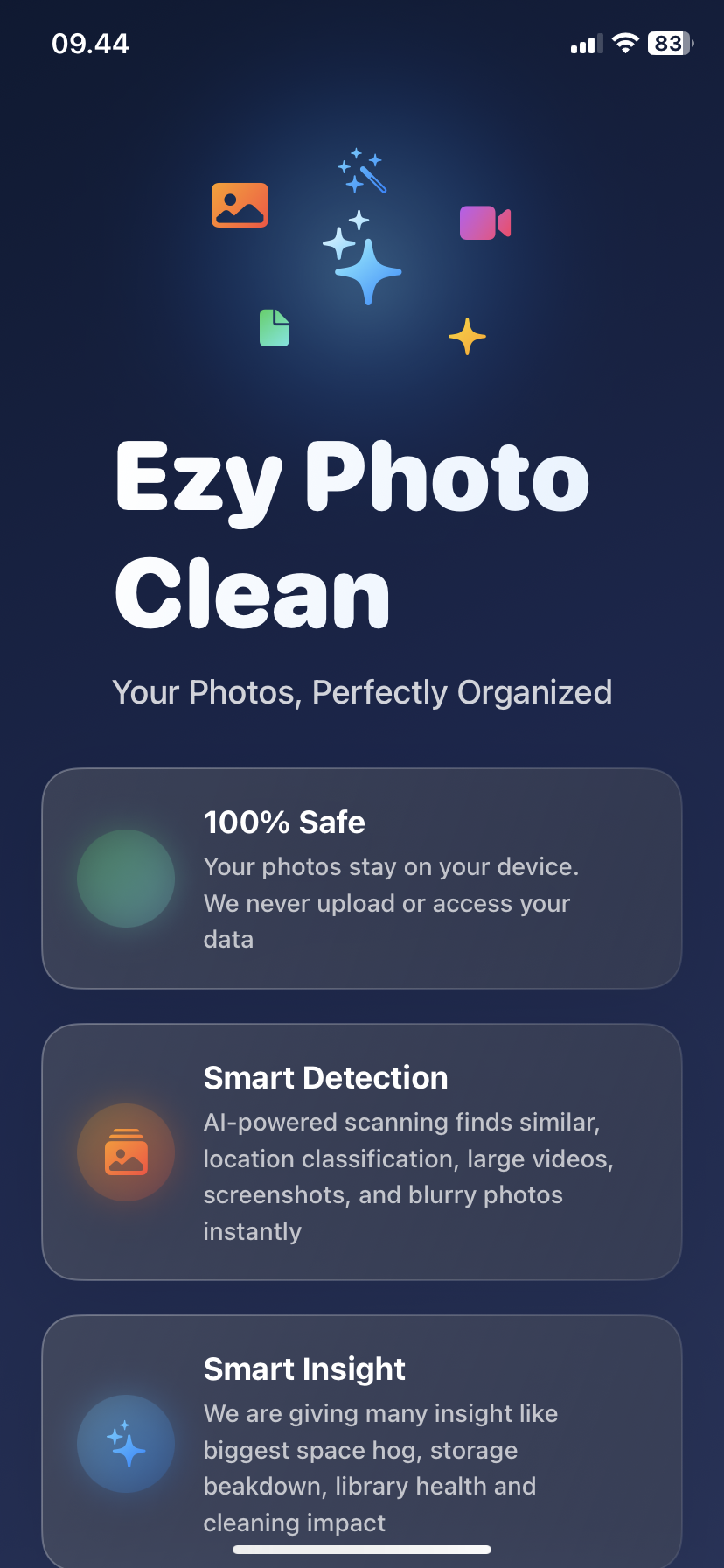
iPhone Photo Storage Optimization: Complete Guide 2025
"iPhone Storage Full"
But you have 200GB iCloud plan.
Why?
Because your settings are wrong.
This guide covers every iPhone photo storage optimization setting—what each does, which to enable, and how to maximize storage.
The Two Key Settings Everyone Confuses
Setting 1: iCloud Photos (ON/OFF)
Location: Settings → Photos → iCloud Photos
What it does:
- ON: Syncs all photos to iCloud
- OFF: Photos stay only on iPhone
Choose ON if:
- Want access on all Apple devices
- Want automatic backup
- Have iCloud storage space
Choose OFF if:
- Prefer manual control
- Want photos only on iPhone
- Don't want to pay for iCloud
Setting 2: Optimize iPhone Storage
Location: Settings → Photos → Optimize iPhone Storage
This is the game-changer most people miss.
Two options:
Option A: Download and Keep Originals
- Full-resolution photos stored on iPhone
- Uses maximum storage
- No internet needed to view
Option B: Optimize iPhone Storage
- Keeps small preview on iPhone
- Full version in iCloud
- Downloads full resolution when viewing
- Frees massive storage
Example:
- 10,000 photos full resolution: 25GB on iPhone
- Same photos optimized: 5GB on iPhone
- Savings: 20GB
The catch: Need internet to view full resolution (previews work offline).
How Optimize Storage Works
Behind the scenes:
When storage is plentiful:
- iPhone keeps many full-resolution photos
- Fast access without downloading
When storage gets low:
- iPhone automatically replaces originals with smaller versions
- Frees space as needed
- Downloads full version when you open photo
What you see:
- No difference in Photos app
- Photos look same quality
- Full resolution downloads in 1-2 seconds
What you save:
- 60-80% storage reduction
- 30GB becomes 8GB
- No manual management
Recommended Settings for Most Users
Optimal configuration:
Photos Settings:
- ✅ iCloud Photos: ON
- ✅ Optimize iPhone Storage: ENABLED
- ❌ Download and Keep Originals: OFF
Result:
- Access all photos on iPhone
- Synced across all devices
- Minimal iPhone storage used
- Full quality available on demand
Who this works for: 90% of users with iCloud storage plan.
Alternative Settings for Specific Needs
Configuration 1: Maximum Quality on Device
For: Professional photographers, offline access needed- iCloud Photos: ON
- Download and Keep Originals: ON
- Needs: 128GB+ iPhone storage
Pros: Instant full-resolution access Cons: Uses maximum storage
Configuration 2: Maximum Storage Savings
For: 64GB iPhone owners, budget users- iCloud Photos: ON
- Optimize iPhone Storage: ON
- Lower camera resolution (Settings → Camera)
- Regular cleanup with Ezy Photo Clean
Result: Use only 3-5GB for photos
Configuration 3: No iCloud Usage
For: Privacy-focused, no iCloud plan- iCloud Photos: OFF
- Manual backup to computer monthly
- Aggressive cleanup of old photos
- Use external storage apps
Pros: No monthly cost Cons: Manual management required
Advanced Storage Optimization Settings
Camera Settings to Reduce Storage Usage
Change photo format: Settings → Camera → Formats
- High Efficiency (HEIF/HEVC): 50% smaller files
- Most Compatible (JPEG/H.264): Larger files, wider compatibility
Recommendation: Use High Efficiency unless you need JPEG compatibility.
Video recording quality: Settings → Camera → Record Video
- 4K 60fps: 400MB per minute
- 4K 30fps: 170MB per minute
- 1080p 60fps: 90MB per minute
- 1080p 30fps: 60MB per minute
Recommendation: Use 1080p 30fps for everyday videos. Save 4K for special occasions.
Messages App Settings
Photo messages eat storage too:
Settings → General → iPhone Storage → Messages
Enable:
- Auto-delete old messages: 1 year
- Review large attachments
- Delete old message threads
Typical savings: 2-5GB
Hidden Storage Settings
1. Recently Deleted Album
- Photos → Albums → Recently Deleted
- Photos stay 30 days
- Still count against storage
- Action: Empty immediately after deletion
2. Shared Albums
- Disable if not used
- Settings → Photos → Shared Albums: OFF
- Saves processing and storage
3. Live Photos
- Each Live Photo = photo + 3-second video
- 1.5-2x larger than regular photo
- Settings → Camera → Preserve Settings → Live Photo: OFF
- Or disable per-shot in camera
Storage Monitoring Strategy
Check weekly:
- Settings → General → iPhone Storage
- Look at Photos size
- If over 15GB: run cleanup
- Target: Keep Photos under 10GB
Use Ezy Photo Clean for:
- Finding duplicates (2-5GB savings)
- Detecting similar photos (3-8GB savings)
- Identifying blurry photos (1-2GB savings)
- Finding large videos (5-20GB savings)
- Organizing screenshots (1-4GB savings)
Frequency:
- Quick scan: Weekly (2 minutes)
- Deep clean: Monthly (10 minutes)
- Annual savings: 20-40GB
Storage Optimization Mistakes
Common errors:
❌ Keep Originals with 64GB iPhone - Runs out fast ❌ Turn off iCloud Photos to "save storage" - Loses backup ❌ Never empty Recently Deleted - Wastes storage ❌ Ignore Optimize Storage suggestion - iPhone tells you when to enable ❌ Record everything in 4K - Unless you're filmmaker ❌ Keep all Live Photos - 2x storage for minor benefit
Emergency Storage Freeing
Phone storage critically full right now?
5-minute emergency cleanup:
- Settings → Photos → Optimize iPhone Storage: ON (instant 5-10GB freed)
- Photos → Recently Deleted → Delete All
- Settings → Safari → Clear History and Data
- Messages → Delete old threads
- Download Ezy Photo Clean → Quick scan → Delete
Result: 10-20GB freed in 5 minutes.
Maintenance Routine
Weekly (2 minutes):
- Quick Ezy Photo Clean scan
- Empty Recently Deleted
- Delete obvious bad photos
Monthly (10 minutes):
- Full Ezy Photo Clean analysis
- Review and delete large videos
- Check storage usage trends
- Delete old screenshots
Quarterly (30 minutes):
- Export favorites to computer
- Deep clean photo library
- Review camera settings
- Optimize further if needed
Take Action: Optimize Now
Your 3-minute optimization:
- Settings → Photos → Enable "Optimize iPhone Storage" (instant 10-20GB saved)
- Download Ezy Photo Clean
- Run full scan
- Delete suggested items
Total time: 3 minutes active + background optimization
Average result: 15-25GB freed immediately
Download Ezy Photo Clean - Smart Optimization
*Last updated: January 27, 2025* *Reading time: 3 minutes*
Ready to Clean Your Photo Library?
Download Ezy Photo Clean and start freeing up storage space today!
Download Free from App StoreContinue Reading
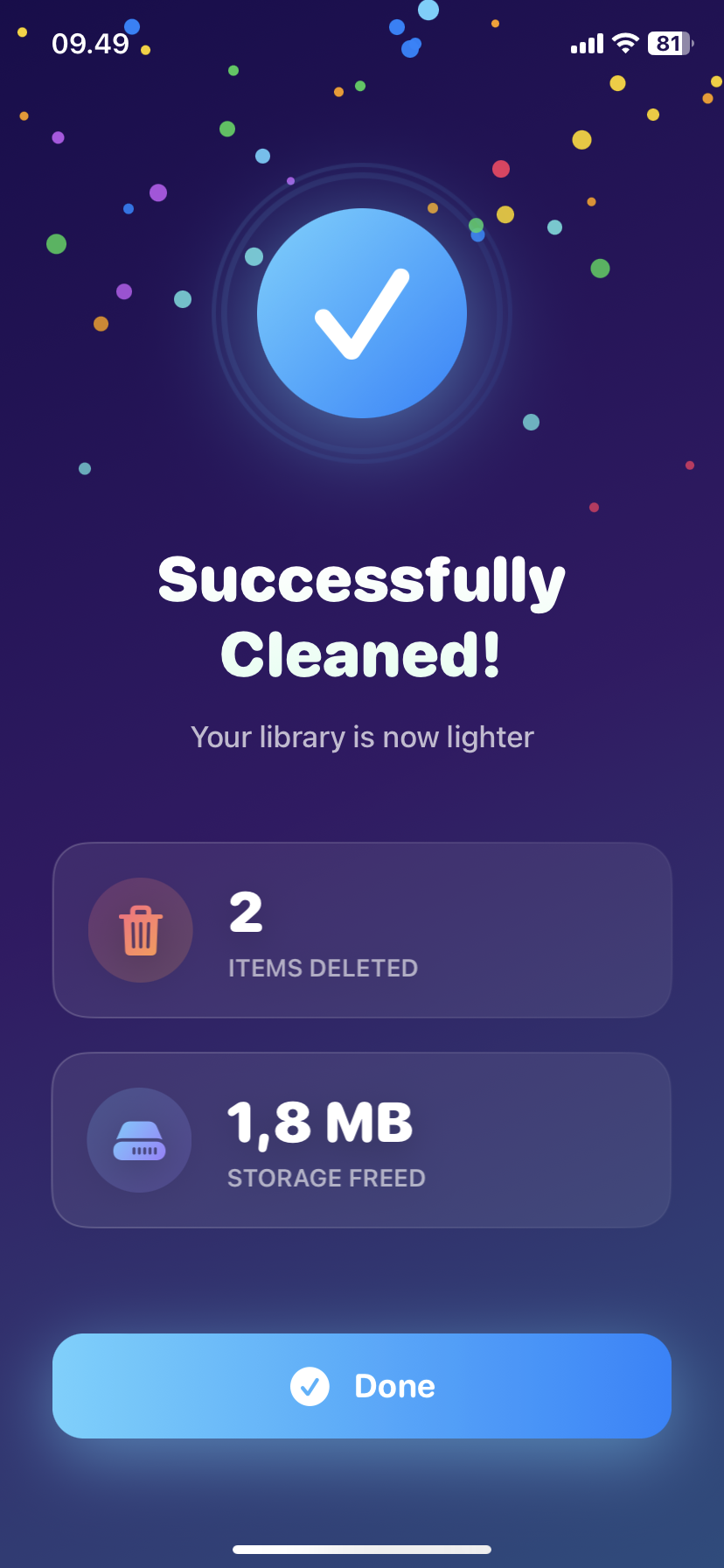
How to Delete Screenshots on iPhone (Mass Delete Guide 2025)
Delete hundreds of screenshots on iPhone in seconds. Complete guide to mass delete screenshots and reclaim storage space quickly with Ezy Photo Clean.
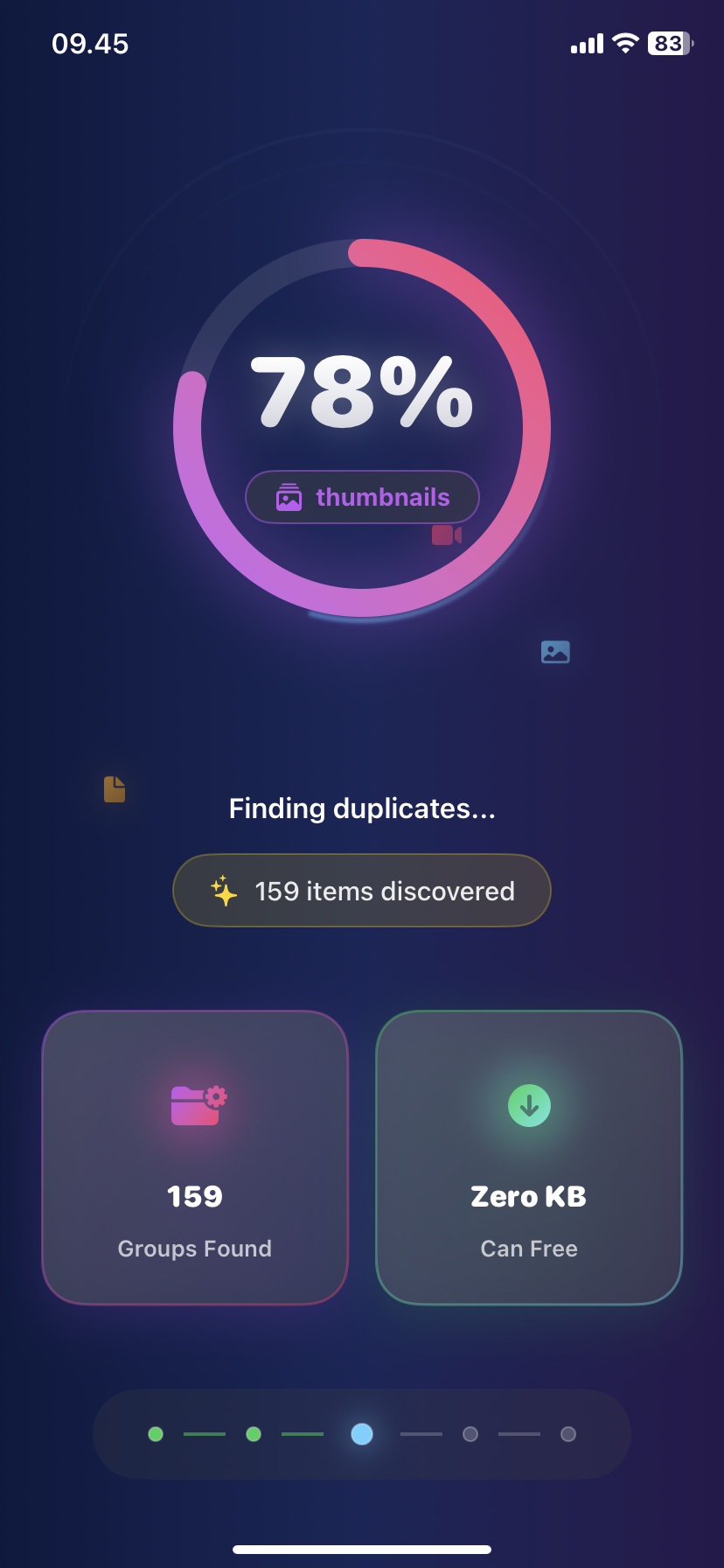
Find Similar Photos on iPhone: AI Detection Guide 2025
Discover how AI finds similar photos on iPhone automatically. Keep the best shot, delete the rest, and free up massive storage space instantly.