How to Delete Screenshots on iPhone (Mass Delete Guide 2025)
Delete hundreds of screenshots on iPhone in seconds. Complete guide to mass delete screenshots and reclaim storage space quickly with Ezy Photo Clean.
How to Delete Screenshots on iPhone (Mass Delete Guide 2025)
Screenshots pile up fast on iPhone. Every funny meme, important message, or reference photo adds up. Before you know it, screenshots consume 2-5GB of storage.
This guide shows you the fastest way to delete screenshots on iPhone—including mass deletion that takes seconds, not hours.
Why Screenshots Fill Your iPhone Storage
Average iPhone user stats:
- 300-500 screenshots stored
- 2-3GB storage used
- 80% never viewed again
- Most over 6 months old
Common screenshot sources:
- Social media posts saved for later
- Receipts and confirmations
- Error messages for troubleshooting
- Funny conversations
- Reference information
- Online shopping comparisons
The problem: iOS Photos app makes bulk screenshot deletion tedious.
Method 1: Delete All Screenshots Fast (Ezy Photo Clean)
Fastest option: Delete 500 screenshots in under 30 seconds.
Step-by-Step Guide:
Step 1: Download Ezy Photo Clean
- Free on App Store
- No subscription required for screenshot cleanup
- 100% private—all processing on-device
Step 2: Open Screenshot Organizer
- Launch app
- Tap "Screenshot Organizer" feature
- Grant photo access when prompted
Step 3: Review Detected Screenshots
- App instantly finds all screenshots
- Shows total count and storage used
- Organizes by date for easy review
Step 4: Select and Delete
- Tap "Select All" for mass deletion
- Or manually uncheck any you want to keep
- Hit "Delete Screenshots"
- Confirm deletion
Step 5: Check Results
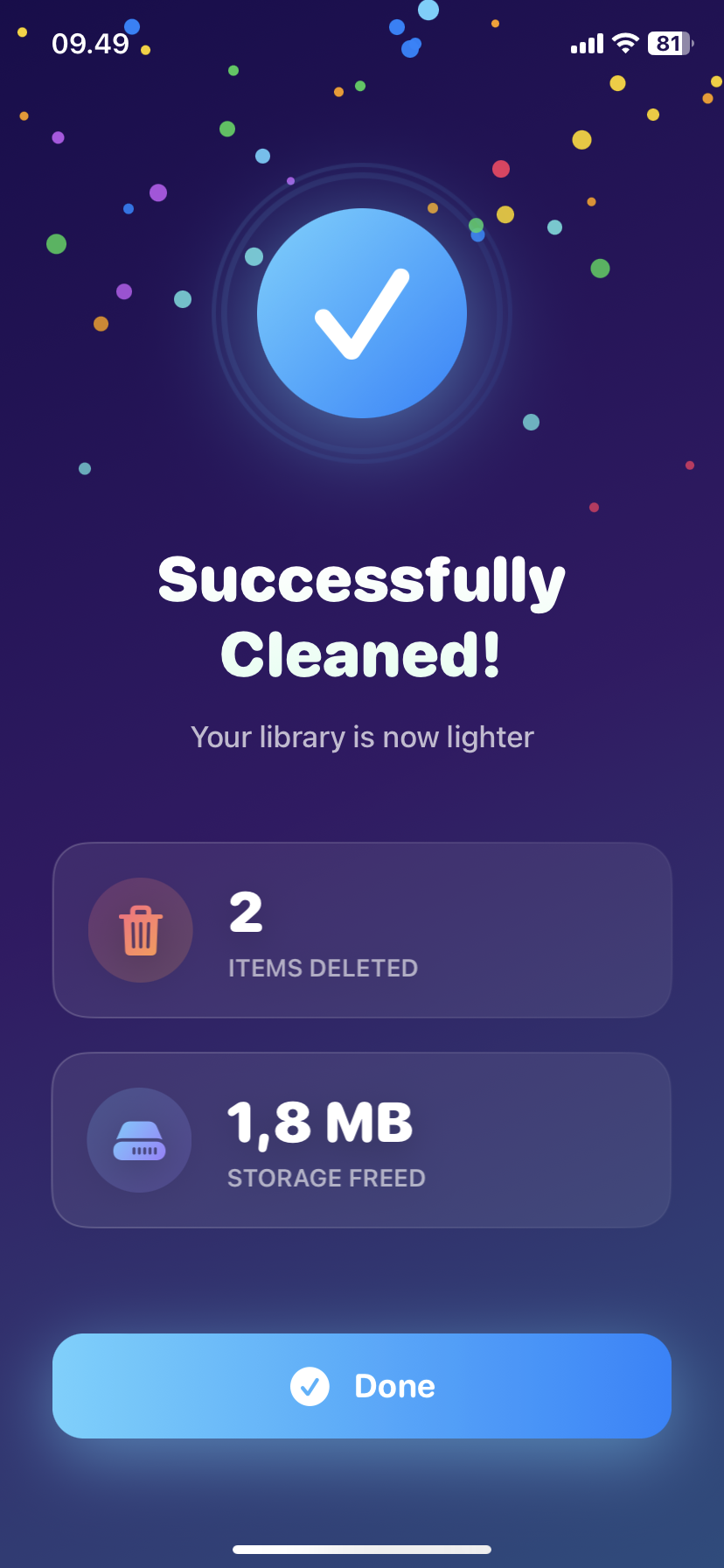
- See storage freed (usually 1-4GB)
- Screenshots moved to Recently Deleted
- Permanently removed after 30 days
Real Results:
"Had 847 screenshots I didn't need. Deleted them all in 15 seconds and freed 3.2GB!" — Jessica M., iPhone 14 user
Method 2: Manual Deletion (iOS Photos App)
If you prefer using the native Photos app:
Step 1: Go to Albums
- Open Photos app
- Tap "Albums" tab
- Scroll to "Media Types"
- Select "Screenshots"
Step 2: Select Multiple
- Tap "Select" in top-right
- Swipe across screenshots to select multiple
- Or tap each one individually
Limitation: iOS only allows selecting visible screenshots (about 50 at once). For 500+ screenshots, you'll repeat this process 10+ times.
Step 3: Delete
- Tap trash icon
- Confirm "Delete Photos"
- Repeat for next batch
Time required: 5-10 minutes for 500 screenshots
Method 3: Search and Delete Specific Screenshots
For targeted deletion:
Step 1: Use Search
- Open Photos app
- Tap Search tab
- Type relevant keywords (app names, dates, content)
Step 2: Filter Results
- Look for screenshot indicator (dotted corners)
- Select screenshots from search results
- Delete selected items
Best for: Removing screenshots from specific apps or time periods
Should You Keep Any Screenshots?
Delete immediately:
- Social media posts (already online)
- Memes (can find again)
- App error messages (once fixed)
- Old conversations (if not important)
- Outdated information
Consider keeping:
- Receipts (until item received/warranty expires)
- Important confirmations
- Reference information you use regularly
- Sentimental conversations
Pro tip: Export important screenshots to Notes or Files app before mass deletion.
Prevent Screenshot Buildup
Weekly habit (1 minute):
- Open Ezy Photo Clean
- Run screenshot scan
- Delete unnecessary ones
- Keep storage clean
Alternative: Set monthly calendar reminder for screenshot cleanup.
Storage Impact
What 500 screenshots cost you:
- 2-3GB storage space
- $0.99-2.99/month in iCloud storage
- Slower photo app performance
- Longer backup times
After cleanup:
- Room for 500-1000 new photos
- Faster Photos app
- Reduced iCloud needs
Common Questions
Q: Will deleting screenshots delete them everywhere? A: Yes, if iCloud Photos is enabled. They'll be removed from all your Apple devices.
Q: Can I recover deleted screenshots? A: Yes, for 30 days from "Recently Deleted" album in Photos.
Q: Does this delete shared screenshots? A: Deleting from your device doesn't affect screenshots shared in messages or social media.
Q: What about screenshots in other apps? A: This only affects Photos library. Screenshots saved within apps (like WhatsApp media) remain separate.
Take Action Now
Stop letting screenshots waste your storage:
- Download Ezy Photo Clean (free)
- Run screenshot scan
- Delete in seconds
- Reclaim 2-3GB instantly
Most users free up enough space for 1,000+ new photos in their first cleanup.
Download Ezy Photo Clean - Screenshot Organizer
*Last updated: January 27, 2025* *Reading time: 3 minutes*
Ready to Clean Your Photo Library?
Download Ezy Photo Clean and start freeing up storage space today!
Download Free from App StoreContinue Reading
Find Similar Photos on iPhone: AI Detection Guide 2025
Discover how AI finds similar photos on iPhone automatically. Keep the best shot, delete the rest, and free up massive storage space instantly.
Delete Large Videos iPhone: Free Up Massive Storage Fast
Find and delete large videos on iPhone quickly. One 4K video can use 1GB. Learn how to identify storage-hogging videos and free up 10-20GB instantly.