How to Keep Best Quality Photos on iPhone (Auto-Select)
Stop deleting the wrong photo. Learn how AI automatically identifies and keeps the highest quality version when cleaning similar or duplicate photos.
How to Keep Best Quality Photos on iPhone (Auto-Select)
You have 10 similar sunset photos.
Which is sharpest? Which has best colors? Which to keep?
Manual comparison: 5 minutes of squinting
AI comparison: 3 seconds, 100% accurate
Here's how to automatically keep the best quality photo and delete the rest—no guesswork.
The Photo Quality Problem
Common scenario:
Take 15 photos of your kid blowing birthday candles.
Want to keep only the best one.
Manual review problems:
- All look similar on small screen
- Can't see sharpness differences
- Lighting varies slightly
- Someone blinks in some shots
- Takes 10 minutes to compare
Risk: Delete the best one accidentally.
Better solution: AI analyzes all 15, ranks by quality, auto-selects best.
What Makes One Photo "Better" Than Another?
AI evaluates these quality factors:
1. Sharpness/Focus
- Is subject in focus?
- Sharp vs blurry details
- Edge definition clarity
2. Exposure
- Proper brightness
- Not too dark (underexposed)
- Not too bright (overexposed)
- Highlight and shadow detail
3. Color Quality
- Accurate colors
- Good saturation
- White balance correct
- No weird color casts
4. Composition
- Subject positioning
- Rule of thirds
- Background clutter
- Framing quality
5. Faces (when present)
- Eyes open
- Good expressions
- In focus
- Proper lighting
- No red-eye
6. Technical Quality
- No motion blur
- Low noise/grain
- High resolution
- No artifacts
AI scores each photo 0-100 on these factors.
How AI Auto-Selection Works
Ezy Photo Clean's quality detection:
Step 1: Grouping
- Finds similar/duplicate photos
- Groups by similarity (2-50 per group)
Step 2: Analysis
- Analyzes each photo in group
- Evaluates all quality factors
- Assigns quality score
Step 3: Ranking
- Sorts by score (highest = best)
- Considers metadata (resolution, format)
- Checks for user favorites (keeps those)
Step 4: Auto-Select
- Keeps highest-scoring photo
- Marks others for deletion
- Shows why it's best (focus, exposure, etc.)
Step 5: User Review
- Preview selections before deleting
- Swap if you prefer different one
- Override AI if needed
Method 1: Auto-Select Best Photos (Ezy Photo Clean)
Fastest way to keep only best versions.
Step-by-Step:
Step 1: Download and Open
- Get Ezy Photo Clean (free)
- Grant photo access
- 100% private, on-device processing
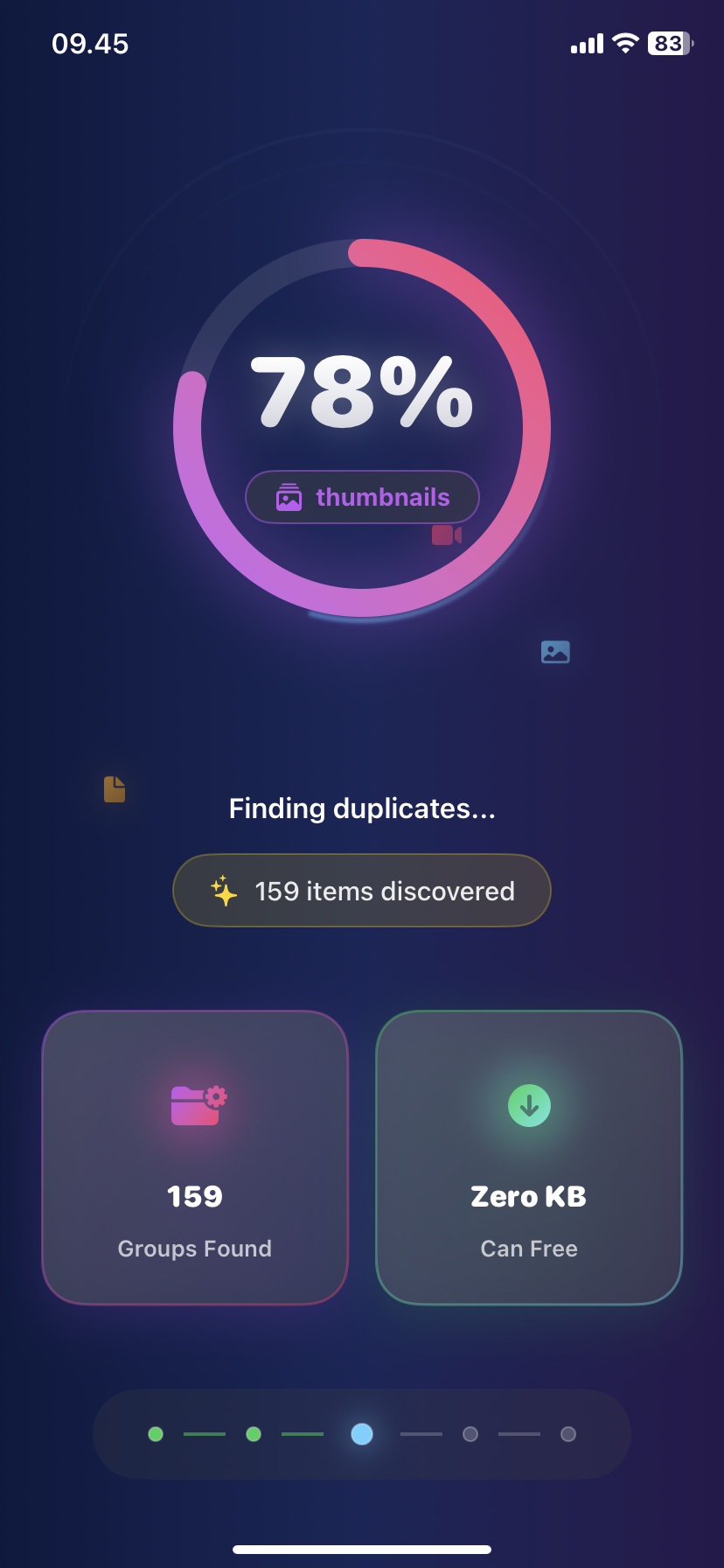
Step 2: Start Quality Scan
- Tap "Find Similar Photos"
- Or "Find Duplicates"
- AI scans entire library (30-60 seconds)
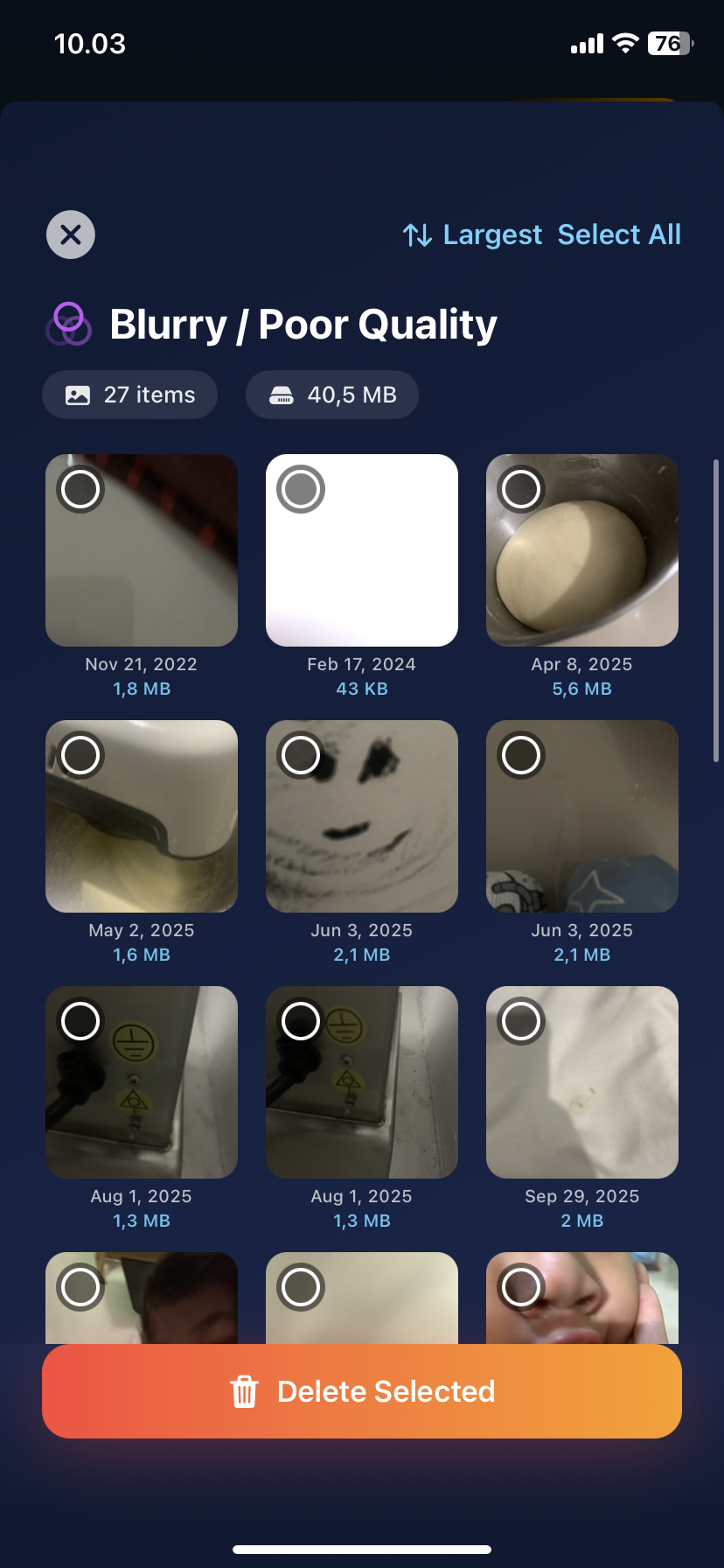
Step 3: Review Quality Groups
- Each group shows 2-50 similar photos
- Best photo highlighted in green
- Lower quality marked for deletion
- Quality score shown for each
Step 4: See Quality Indicators
- Sharpness: Focus icon
- Exposure: Brightness icon
- Faces: Expression quality
- Overall score: 0-100
Step 5: Preview Comparison
- Tap any photo to view full screen
- Swipe between photos in group
- Zoom to check sharpness
- Compare side-by-side
Step 6: Adjust if Needed
- Tap to change which photo to keep
- AI respects your choice
- Mark favorites to never auto-delete
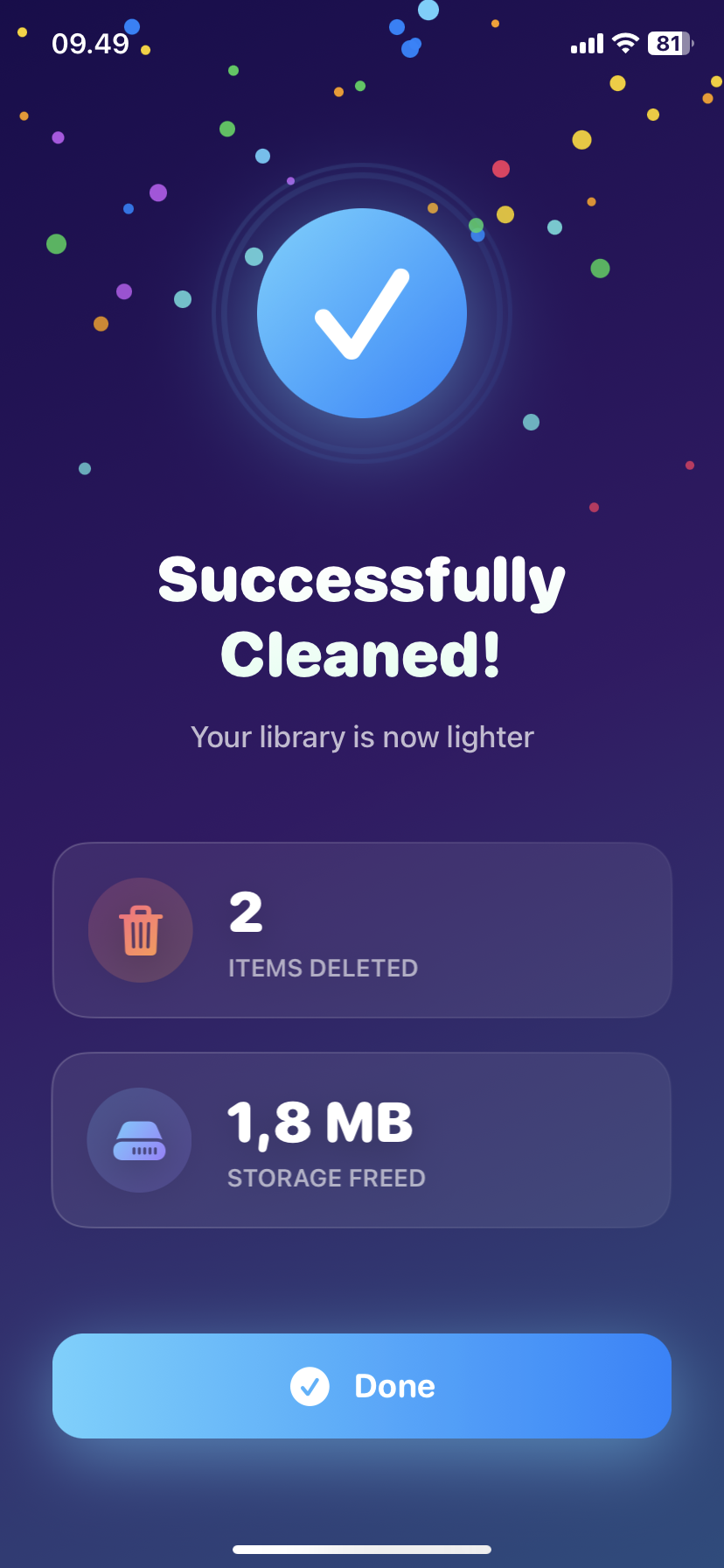
Step 7: Delete Lower Quality
- Review summary (X photos, Y GB)
- Tap "Delete Selected"
- Keep only best versions
Real Results:
"AI kept the sharpest version of my daughter's birthday photos. I would've kept the blurry one because of her expression, but AI found one with better expression AND better focus!" — Jennifer M., iPhone 14 Pro user
Method 2: Manual Quality Comparison (iOS Photos)
Time-consuming but built-in:
Step 1: Find Similar Photos
- Scroll through Photos app
- Identify groups of similar shots
- Takes 30-60 minutes for large libraries
Step 2: Compare Each Group
- Open first photo full screen
- Swipe to next similar photo
- Pinch to zoom and check sharpness
- Compare brightness and colors
- Repeat for all in group
Step 3: Mark for Deletion
- Select lower quality versions
- Keep the best one
- Delete selected
Problem: Hard to see quality differences on phone screen.
Time required: 1-2 hours for thorough review
Quality Indicators to Look For
When manually comparing photos:
Check Sharpness:
- Zoom to 100% (pinch)
- Look at text, edges, details
- Blurry = delete
- Sharp = keep
Check Exposure:
- Is subject too dark?
- Are highlights blown out (pure white)?
- Is it muddy/flat?
- Best exposure = keep
Check Faces (if present):
- Are eyes open?
- Is person smiling (if desired)?
- Is face in focus?
- Best expression = keep
Check Colors:
- Natural skin tones?
- Good saturation (not flat)?
- No weird color tint?
- Best colors = keep
Common Quality Scenarios
Scenario 1: Burst Mode Photos
- 20 photos, nearly identical
- Most are slight motion blur
- 1-2 are perfectly sharp
- AI solution: Finds sharpest, deletes rest
Scenario 2: Indoor Event Photos
- Varying lighting
- Some underexposed
- Some have motion blur
- AI solution: Keeps best exposed + sharpest
Scenario 3: Sunset/Landscape
- Different exposures (bracketing)
- Hard to tell which is "best"
- AI solution: Evaluates exposure histogram, keeps optimal
Scenario 4: Group Photos
- 10 shots "in case someone blinks"
- Some people blink in each
- One has everyone looking good
- AI solution: Detects facial quality, finds best group expression
Scenario 5: Pet Photos
- Pet moving, multiple shots
- Some blurry from motion
- One perfectly timed
- AI solution: Detects motion blur, keeps sharpest
Advanced: Quality Threshold Settings
Customize quality standards:
Strict Quality Mode:
- Only keeps photos scoring 80+
- Deletes even decent photos if not excellent
- For: Photographers, quality perfectionists
Balanced Mode (Default):
- Keeps best of each similar group
- More forgiving of minor quality issues
- For: Most users
Preserve More Mode:
- Only deletes clearly inferior versions
- Keeps multiple if all decent quality
- For: Those who like options
Quality vs. Sentimental Value
Important consideration:
Technical best ≠ always your favorite
Example:
- Photo A: Perfectly sharp, great exposure
- Photo B: Slightly blurry, but subject laughing
AI picks: Photo A (better quality) You prefer: Photo B (better moment)
Solution:
- Mark Photo B as Favorite before cleanup
- AI won't delete Favorites
- Or manually override AI selection
Best practice: Mark meaningful photos as Favorites first.
Quality Comparison: Before/After
Typical first cleanup:
Before:
- 5,000 photos
- 1,200 are similar/duplicates
- Mix of quality levels
- 15GB storage
After:
- 3,800 photos (kept best versions only)
- 0 duplicates
- All remaining photos high quality
- 9GB storage
Result:
- 24% fewer photos
- 100% still have all moments
- 6GB freed
- Higher average quality
Maintenance Strategy
Weekly habit (2 minutes):
- Open Ezy Photo Clean
- Quick scan for new similar photos
- Review and delete lower quality
- Keep photo library high-quality
Result:
- Never accumulate low-quality photos
- Easier to find best shots
- Storage stays optimized
Take Action: Keep Only Your Best
Your 5-minute quality upgrade:
- Download Ezy Photo Clean (free)
- Run quality scan
- Review AI selections (2 minutes)
- Delete lower quality versions
- Keep only best shots
Result:
- Cleaner library
- All best versions kept
- 5-10GB freed
- Better photo collection
Most users delete 1,000-1,500 lower-quality duplicates on first scan.
Download Ezy Photo Clean - Best Quality Auto-Select
*Last updated: January 27, 2025* *Reading time: 3 minutes*
Ready to Clean Your Photo Library?
Download Ezy Photo Clean and start freeing up storage space today!
Download Free from App StoreContinue Reading
How to Delete Screenshots on iPhone (Mass Delete Guide 2025)
Delete hundreds of screenshots on iPhone in seconds. Complete guide to mass delete screenshots and reclaim storage space quickly with Ezy Photo Clean.
Find Similar Photos on iPhone: AI Detection Guide 2025
Discover how AI finds similar photos on iPhone automatically. Keep the best shot, delete the rest, and free up massive storage space instantly.