iPhone Storage Management: 10 Tips That Actually Save Space (2025)
Master iPhone storage management with 10 proven tips. Learn what works, what doesn't, and how to keep 20%+ free space without deleting photos.
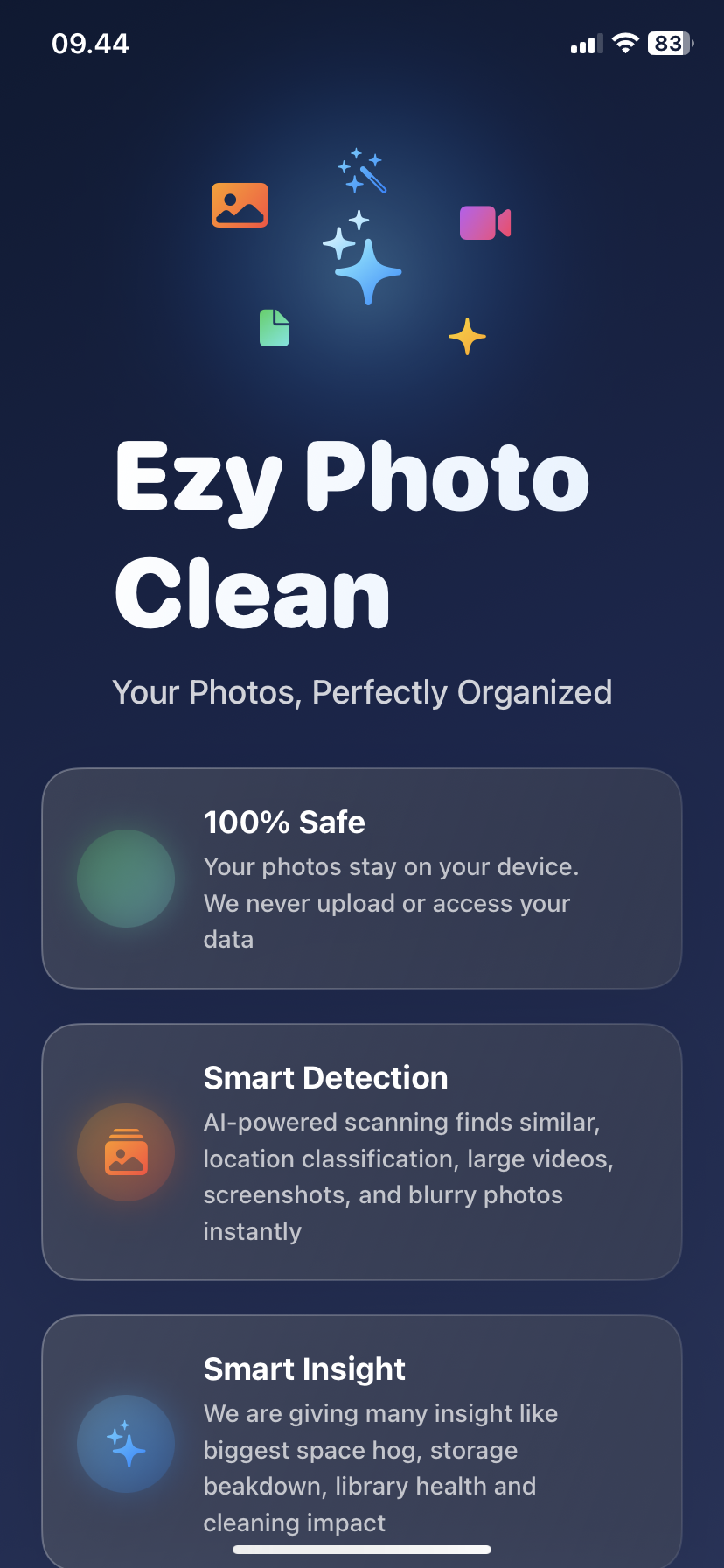
iPhone Storage Management: 10 Tips That Actually Save Space (2025)
Most iPhone storage management advice is useless.
Here's what actually works in 2025.
Tip 1: Delete Duplicates Monthly (Biggest Impact)
Why it matters:
- Average iPhone: 500 duplicate photos
- That's 3-4GB wasted
- Accumulates monthly
How to do it:
- Use Ezy Photo Clean once per month
- Scan for duplicates (60 seconds)
- Delete all (30 seconds)
Time: 2 minutes/month Storage saved: 3-4GB Effort: Minimal
Impact: ⭐⭐⭐⭐⭐
Tip 2: Enable "Optimize iPhone Storage" (Set and Forget)
What it does:
- Keeps full-res photos in iCloud
- Stores compressed versions on iPhone
- Automatically manages space
How to enable: Settings → Photos → Optimize iPhone Storage
Storage saved: 5-10GB Cost: iCloud 50GB plan ($0.99/month)
Worth it? Absolutely
Impact: ⭐⭐⭐⭐⭐
Tip 3: Clear "Other" Storage Quarterly (Hidden Space)
What "Other" storage is:
- App caches
- Safari data
- System files
How to clear:
- Settings → Safari → Clear History
- Offload largest 3 apps, reinstall
- Restart iPhone
Storage saved: 2-5GB every 3 months
Impact: ⭐⭐⭐⭐
Tip 4: Auto-Delete Old Messages (Prevention)
Set it once, forget it:
Settings → Messages → Keep Messages → 1 Year
What this does:
- Deletes messages over 1 year old
- Removes video attachments automatically
- Prevents buildup
Storage saved: 1-3GB/year
Impact: ⭐⭐⭐
Tip 5: Review Large Files Monthly (Quick Wins)
The 80/20 rule:
- 20% of files use 80% of storage
- Find and delete biggest files first
How: Settings → General → iPhone Storage → Review Large Attachments
Or use Ezy Photo Clean: Tap "Large Files" → See all videos sorted by size
Storage saved: 2-8GB
Impact: ⭐⭐⭐⭐⭐
Tip 6: Offload Unused Apps (Invisible Space)
Better than deleting:
- Removes app
- Keeps data and documents
- Reinstall restores everything
Auto-enable: Settings → App Store → Offload Unused Apps
Manual: Settings → General → iPhone Storage → Offload App
Storage saved: 5-10GB
Impact: ⭐⭐⭐⭐
Tip 7: Delete Screenshots Weekly (Easy Habit)
The problem:
- Take 5-10 screenshots/day
- Most are temporary (memes, receipts, info)
- Never delete them
- 300-500 screenshots accumulate
The solution: Every Sunday: Delete screenshots older than 1 week
Quick method: Ezy Photo Clean → Screenshots → Delete old ones
Storage saved: 500MB-1GB/month
Impact: ⭐⭐⭐
Tip 8: Disable HDR "Keep Normal Photo" (Prevention)
What this does: iPhone saves TWO copies:
- HDR version
- Normal version
You only need one.
How to disable: Settings → Camera → turn OFF "Keep Normal Photo"
Storage saved: 1-2GB over time
Impact: ⭐⭐
Tip 9: Use Streaming Over Downloads (Behavior Change)
Storage killers:
- Downloaded Spotify playlists
- Offline Netflix episodes
- Saved podcasts
Better approach:
- Stream everything
- Only download for flights
Storage saved: 3-10GB
Impact: ⭐⭐⭐⭐
Tip 10: Empty "Recently Deleted" Weekly (Complete the Job)
What people forget:
- Deleted photos stay 30 days
- Still use storage
- Need permanent delete
Weekly habit: Photos → Albums → Recently Deleted → Delete All
Storage saved: 1-3GB
Impact: ⭐⭐⭐
iPhone Storage Management Priority Order
Do these first (highest impact):
- Delete duplicates (3-4GB)
- Enable Optimize Storage (5-10GB)
- Review large files (2-8GB)
- Offload unused apps (5-10GB)
Total potential: 15-32GB
Time: 15 minutes
What DOESN'T Work
Myth 1: Closing apps saves storage ❌ Only affects RAM, not storage
Myth 2: Deleting random apps ❌ Most apps = 100-300MB (minimal impact)
Myth 3: "Cleaner" apps that optimize memory ❌ Placebo effect, iOS manages memory automatically
Myth 4: Factory reset for storage ❌ Nuclear option, unnecessary
Focus on what actually works.
The Monthly Storage Management Routine
First Sunday of month (10 minutes):
Minutes 1-3: Delete duplicates
- Ezy Photo Clean scan
- Delete all
Minutes 4-5: Clear "Other"
- Clear Safari history
- Restart iPhone
Minutes 6-7: Screenshots
- Delete old screenshots
- Empty Recently Deleted
Minutes 8-9: Large files
- Review biggest videos
- Delete or move to cloud
Minute 10: Check storage
- Settings → General → iPhone Storage
- Verify 20%+ free space
Result: Always have breathing room
Storage Management by iPhone Model
64GB iPhone:
- Keep 10-15GB free minimum
- Use Optimize Storage (required)
- Monthly cleanup essential
128GB iPhone:
- Keep 20-25GB free
- Use Optimize Storage (recommended)
- Monthly cleanup helpful
256GB+ iPhone:
- Keep 30GB+ free
- Optimize Storage optional
- Quarterly cleanup sufficient
The Bottom Line
iPhone storage management = habits, not heroics.
Best practices: ✅ Delete duplicates monthly (AI tool) ✅ Enable Optimize Storage ✅ Review large files quarterly ✅ Auto-delete old messages ✅ Offload unused apps
Don't waste time on: ❌ Closing apps ❌ Deleting small files manually ❌ "Memory optimizer" apps ❌ Constant micromanagement
10 minutes/month keeps you at 20%+ free space.
Download Ezy Photo Clean - Storage Management Tool
*Last updated: January 18, 2025* *Reading time: 3 minutes*
Ready to Clean Your Photo Library?
Download Ezy Photo Clean and start freeing up storage space today!
Download Free from App StoreContinue Reading
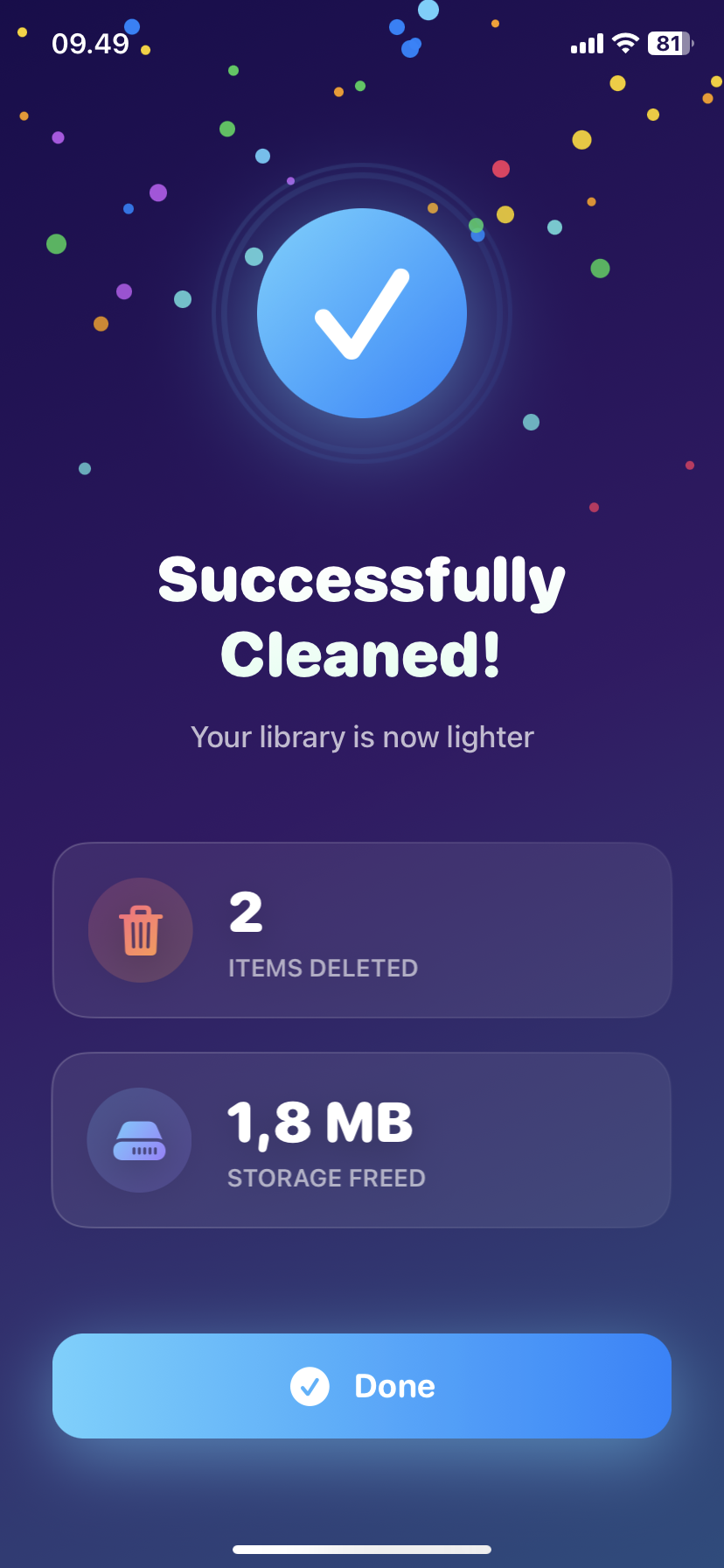
How to Delete Screenshots on iPhone (Mass Delete Guide 2025)
Delete hundreds of screenshots on iPhone in seconds. Complete guide to mass delete screenshots and reclaim storage space quickly with Ezy Photo Clean.
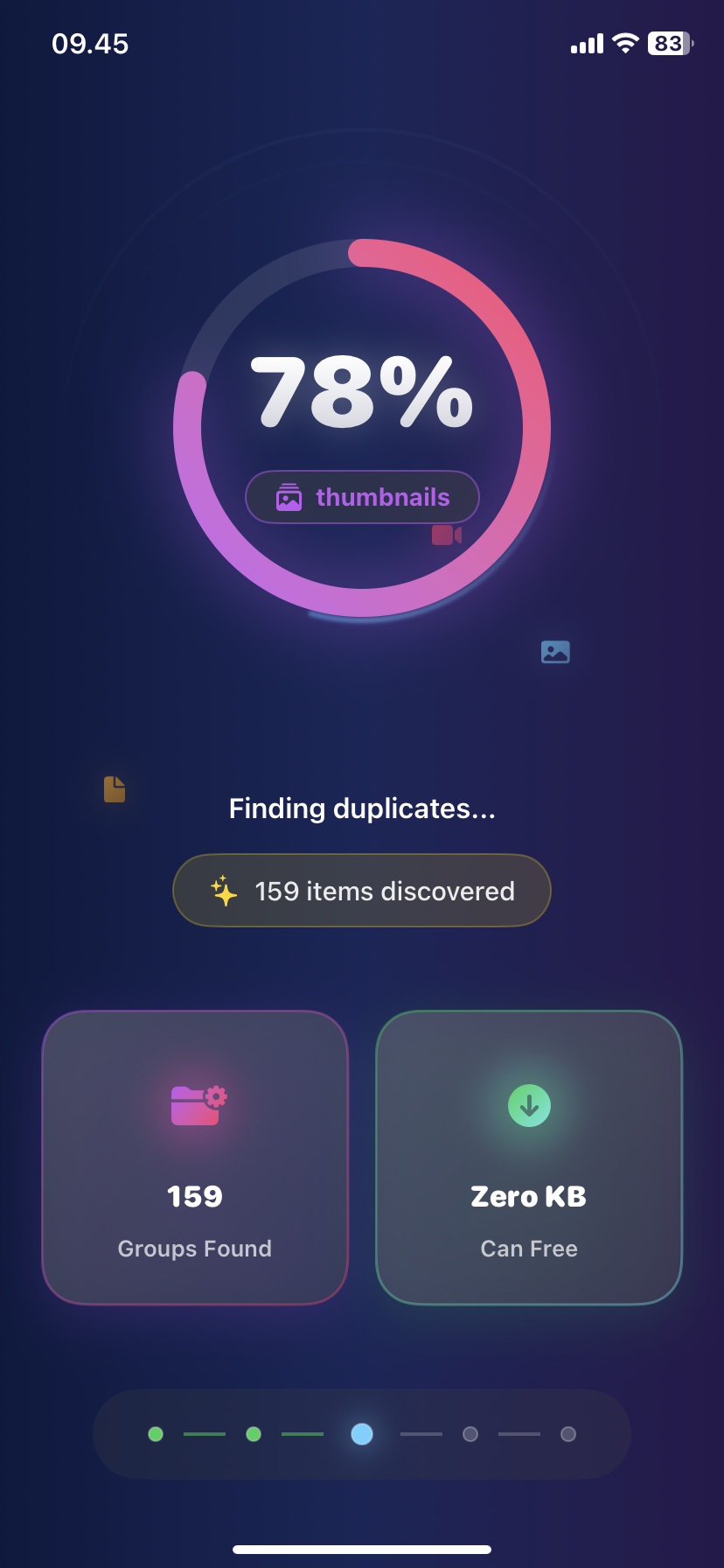
Find Similar Photos on iPhone: AI Detection Guide 2025
Discover how AI finds similar photos on iPhone automatically. Keep the best shot, delete the rest, and free up massive storage space instantly.