iPhone Storage Full But Nothing to Delete? Here's What's Hidden
iPhone storage full but can't find what to delete? Discover the hidden storage hogs eating 10-15GB and how to reclaim space without losing photos.
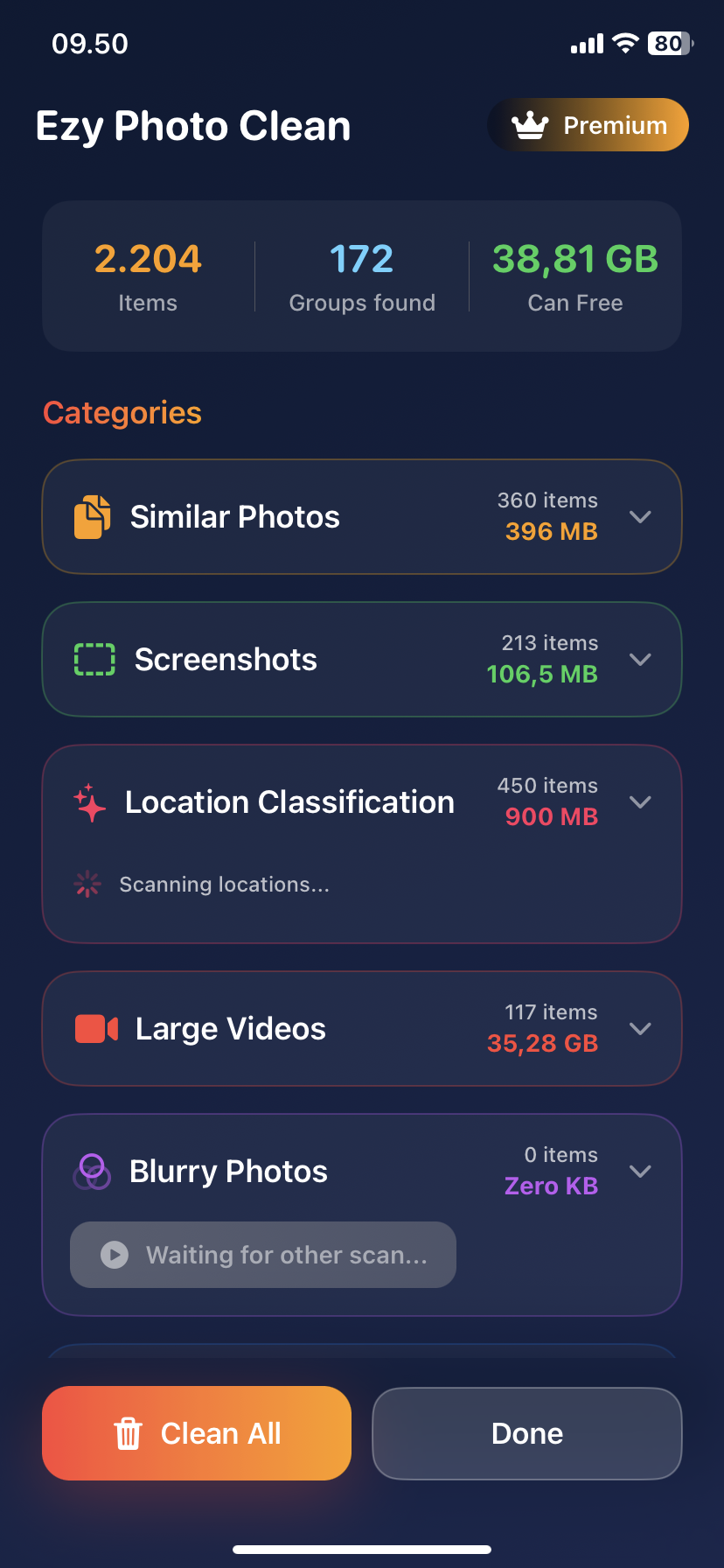
iPhone Storage Full But Nothing to Delete? Here's What's Hidden
"128GB iPhone. Only 50GB of stuff. Shows full. What?"
This is the hidden storage problem. Here's what's eating your space.
The Hidden Storage Culprits
1. "Other" Storage (The Invisible Giant)
What it is: Gray bar in Settings → Storage
What's inside:
- App caches (3-5GB)
- Safari data (1-2GB)
- System files (2-3GB)
- iOS backups (2-4GB)
- Message attachments (1-3GB)
Total: 10-15GB you can't see
How to clean:
- Clear Safari: Settings → Safari → Clear History
- Offload apps: Settings → General → iPhone Storage → Offload
- Delete message attachments: Messages → large conversations → Delete
Result: 5-10GB back
2. Duplicate Photos You Don't Know About
The problem:
- iCloud sync duplicates
- Edited photos (saves original + edited)
- Burst mode selections
- HDR duplicates
You see: 3,000 photos Reality: 4,500 photos (1,500 hidden duplicates)
How to find:
- Use Ezy Photo Clean AI scanner
- Finds 100% of duplicates in 60 seconds
- Shows you hidden copies
Result: 2-4GB back
3. System Data Bloat
What happens:
- iOS updates leave temp files
- Old backups not cleared
- Cache builds up over time
Symptoms:
- "System" shows 20-30GB
- Should be 8-12GB
- Extra 10-15GB stuck
How to fix:
- Restart iPhone (clears some cache)
- Update to latest iOS
- Last resort: Backup and restore
Result: 5-15GB back
4. Message Attachments (Sneaky Space Hog)
Hidden in plain sight:
- Videos in texts (2-3GB)
- Photos in group chats (1-2GB)
- GIFs and stickers (500MB-1GB)
You don't see them in Photos app, but they use storage.
How to clean:
- Settings → General → iPhone Storage
- Messages → Review attachments
- Delete videos and large photos
Result: 2-5GB back
5. App Documents and Data
The problem:
- Apps store data locally
- Spotify: 5GB of cached music
- Instagram: 2GB of cached videos
- WhatsApp: 3GB of chat backups
How to check: Settings → General → iPhone Storage → tap each app
How to fix:
- Delete and reinstall app (keeps login)
- Clear app cache in app settings
- Offload app (keeps data, removes app)
Result: 3-8GB back
The "Storage Full But Nothing to Delete" Diagnosis
Check this:
Step 1: Settings → General → iPhone Storage Step 2: Wait for it to load (takes 30-60 seconds) Step 3: Look at breakdown
If you see:
- System: 20GB+ → Bloated (should be ~10GB)
- Other: 10GB+ → Cache buildup
- Photos: Less than you expect → Hidden duplicates
- Apps: 5GB+ each → Data bloat
The Complete Fix (15 Minutes)
Minutes 1-3: Clear "Other" Storage
- Safari cache
- Offload unused apps
- Message attachments
Minutes 4-6: Find Hidden Duplicates
- Download Ezy Photo Clean
- Scan for duplicates
- Delete all
Minutes 7-9: App Cleanup
- Check largest apps
- Delete and reinstall biggest 3
- Clear cache where possible
Minutes 10-12: System Maintenance
- Restart iPhone
- Empty "Recently Deleted"
- Update iOS if available
Minutes 13-15: Verify
- Check Settings → Storage again
- See 10-20GB freed
Why iPhone Storage Full Happens
The cycle:
- Take photos → Some are duplicates
- Use apps → Cache builds up
- Browse Safari → Data accumulates
- Send messages → Attachments pile up
- Update iOS → Old files remain
- Repeat for months
Result: 15-20GB of invisible waste
Quick Wins (5 Minutes)
Need space NOW:
- Delete duplicates (2 min)
- Clear Safari (1 min)
- Empty Recently Deleted (1 min)
- Restart iPhone (1 min)
Total: 4-10GB in 5 minutes
Prevention Strategy
Monthly (10 minutes):
- Run Ezy Photo Clean scan
- Clear Safari cache
- Review message attachments
- Restart iPhone
Result: Never hit "storage full" again
The "Last Resort" Method
If nothing else works:
Backup and restore:
- Backup to iCloud or computer
- Settings → General → Transfer or Reset iPhone
- Erase All Content and Settings
- Restore from backup
Why this works: Clears all cache and "Other" storage
Time: 2-3 hours Result: Fresh iPhone, 15-20GB freed
Only do this if: You've tried everything else
The Bottom Line
iPhone storage full but "nothing to delete" = hidden storage.
What's hidden:
- "Other" storage (10-15GB)
- Duplicate photos (2-4GB)
- System bloat (5-15GB)
- Message attachments (2-5GB)
- App caches (3-8GB)
Total hidden: 20-45GB
You're not crazy. It's there. Just invisible.
Download Ezy Photo Clean - Find Hidden Duplicates
*Last updated: January 18, 2025* *Reading time: 3 minutes*
Ready to Clean Your Photo Library?
Download Ezy Photo Clean and start freeing up storage space today!
Download Free from App StoreContinue Reading
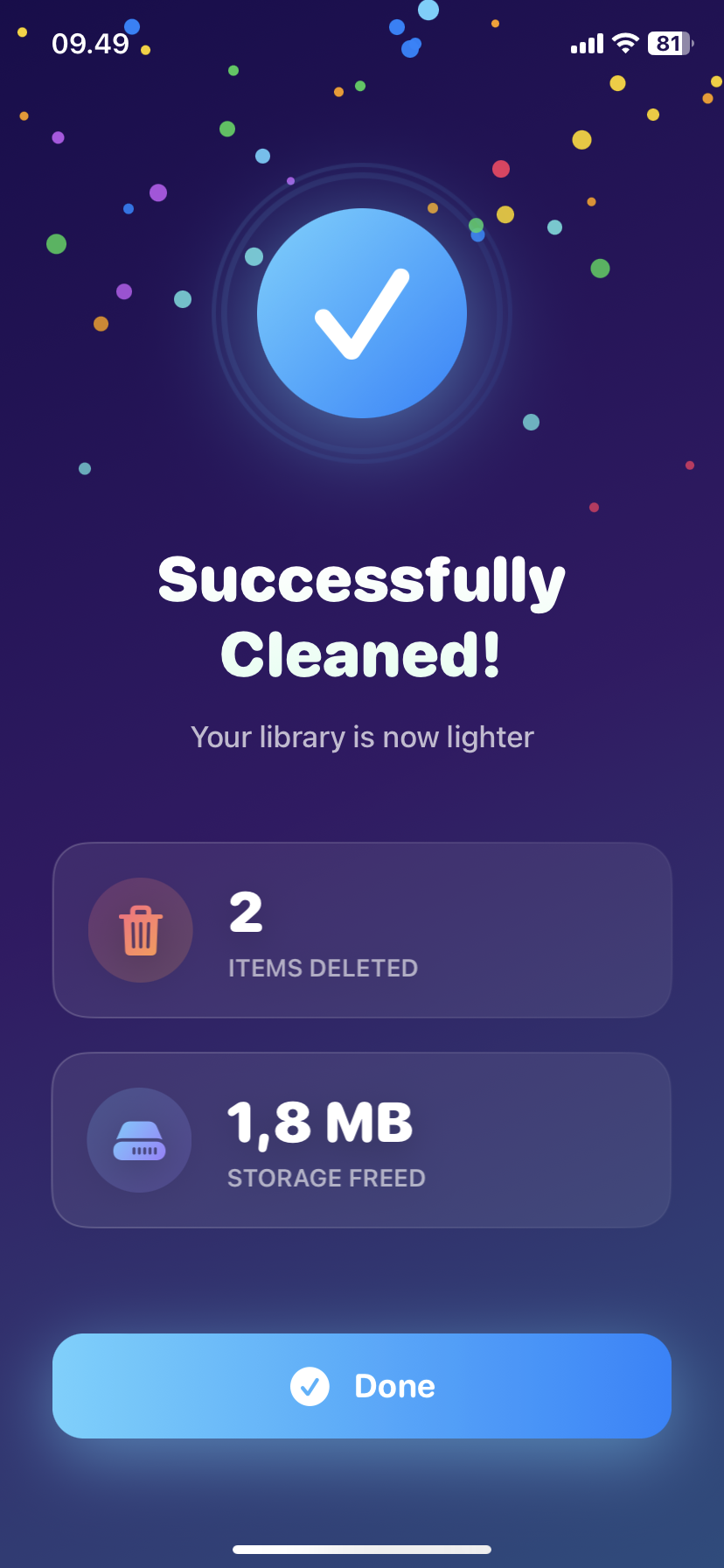
How to Delete Screenshots on iPhone (Mass Delete Guide 2025)
Delete hundreds of screenshots on iPhone in seconds. Complete guide to mass delete screenshots and reclaim storage space quickly with Ezy Photo Clean.
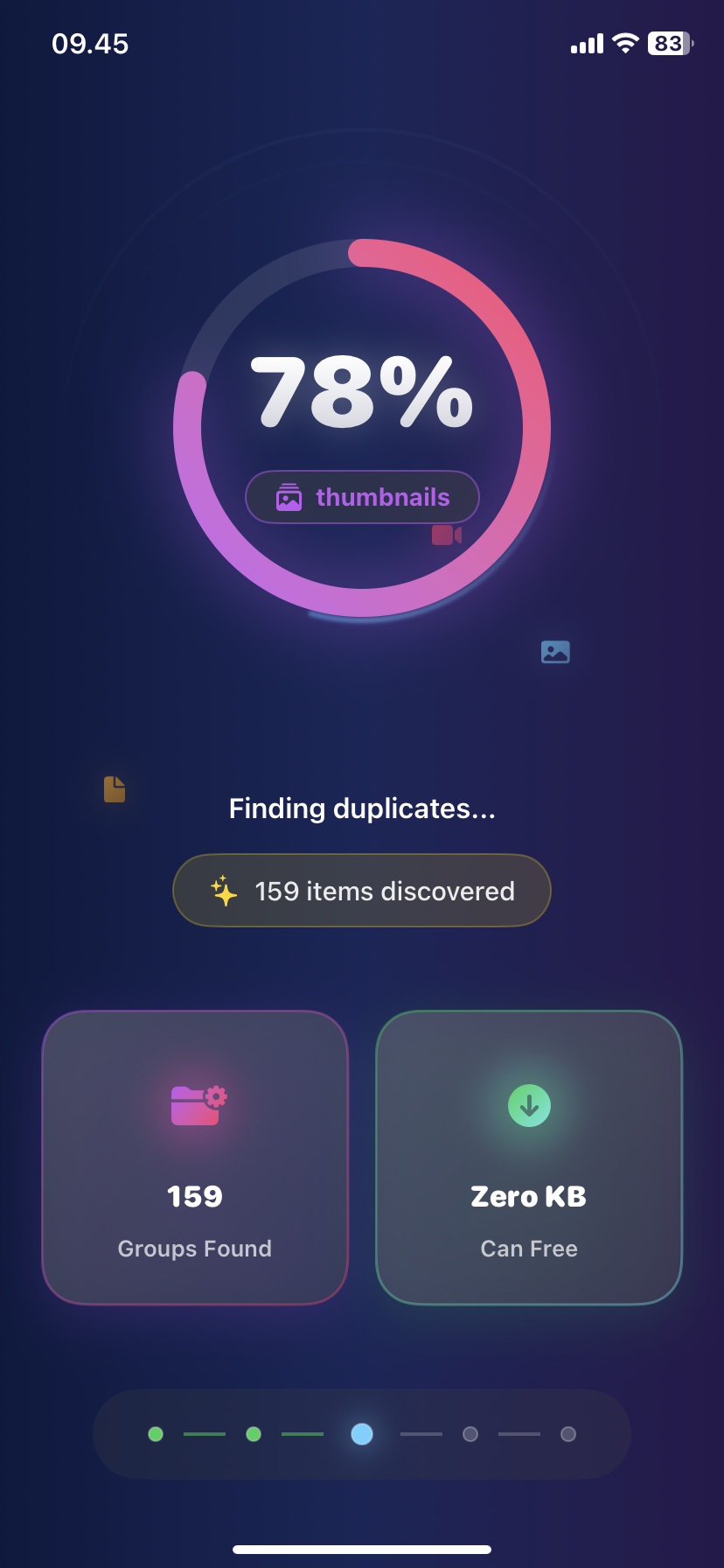
Find Similar Photos on iPhone: AI Detection Guide 2025
Discover how AI finds similar photos on iPhone automatically. Keep the best shot, delete the rest, and free up massive storage space instantly.