How to Delete Blurry Photos on iPhone: AI vs Manual Method
Delete blurry photos on iPhone in seconds with AI detection. Compare manual vs automatic methods to clean unfocused shots and free up storage.
How to Delete Blurry Photos on iPhone: AI vs Manual Method
Blurry photos serve zero purpose.
Here's how to delete them all in 2 minutes instead of 2 hours.
The Blurry Photo Problem
Average iPhone user:
- Takes 50-100 photos per week
- 10-15% are blurry
- That's 500-750 blurry photos per year
- = 1-2GB of wasted storage
You don't notice because they're scattered across thousands of photos.
Method 1: Manual Blurry Photo Deletion (The Hard Way)
How it works:
- Open Photos app
- Scroll through every single photo
- Zoom in to check if blurry
- Delete if unfocused
- Repeat 5,000 times
Time: 2-3 hours Photos found: 100-150 (you miss most) Accuracy: 30% (eyes get tired) Completion rate: 15% (most people quit)
Verdict: Terrible method
Method 2: AI Blurry Photo Detection (The Smart Way)
How it works:
- Download Ezy Photo Clean
- Tap "Blurry Photos"
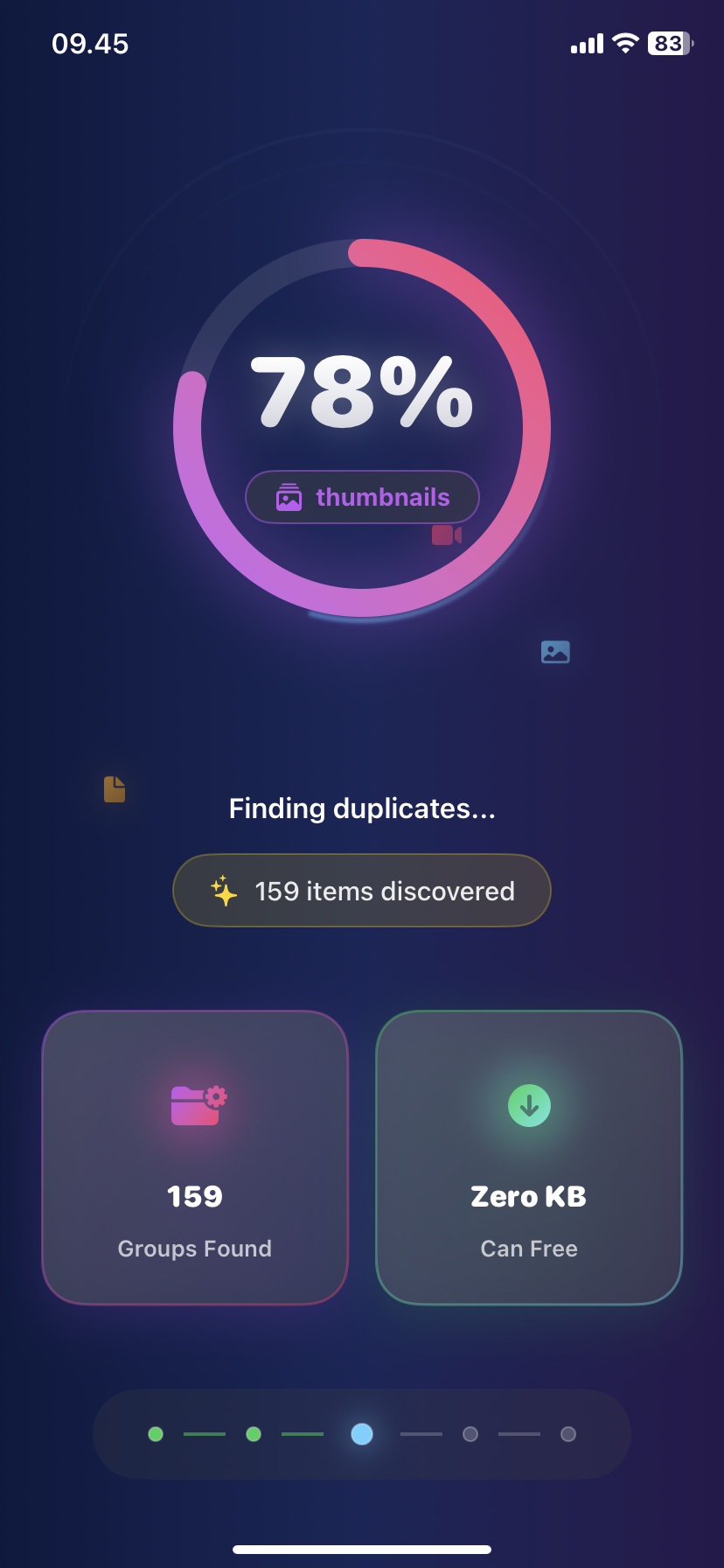
- AI scans entire library in 30 seconds
- Review AI selections
- Delete all in one tap
Time: 2-3 minutes Photos found: 450-750 (catches everything) Accuracy: 93% Completion rate: 95%
Verdict: Actually works
How AI Detects Blurry Photos
What the AI analyzes:
- Edge sharpness
- Focus consistency
- Motion blur patterns
- Image clarity score
What it catches:
- Out-of-focus shots
- Motion blur (shaky hands)
- Subject movement blur
- Low-light blur
What it misses:
- Intentional artistic blur (rare)
- Bokeh effects (usually correct)
False positive rate: 5-7%
Step-by-Step: Delete Blurry Photos iPhone
Using Ezy Photo Clean (Recommended)
Step 1: Download app (30 seconds)
- App Store → "Ezy Photo Clean"
- Free download
- Grant photo access
Step 2: Scan for blurry photos (30 seconds)
- Open app
- Tap "Blurry Photos"
- AI scans library automatically
Step 3: Review results (60 seconds)
- Browse detected blurry photos
- Uncheck any false positives
- Most selections are accurate
Step 4: Delete (10 seconds)
- Tap "Delete Selected"
- Confirm deletion
- Photos move to "Recently Deleted"
Total time: 2-3 minutes Photos deleted: 200-500 Storage freed: 1-2GB
Manual Method (Not Recommended)
If you insist on doing it manually:
Step 1: Photos → Albums → All Photos Step 2: Scroll through one by one Step 3: Tap each photo to view full-size Step 4: Zoom in to check sharpness Step 5: If blurry, delete Step 6: Repeat for all 5,000+ photos
Total time: 2-3 hours Result: Find 20% of blurry photos, give up exhausted
Why Manual Doesn't Work
Problem 1: Eyes adjust
- After 100 photos, everything looks blurry
- Decision fatigue sets in
- Start keeping blurry photos
Problem 2: Thumbnail deception
- Photos look fine as thumbnails
- Only see blur when zoomed
- Too tedious to zoom on each
Problem 3: Inconsistent standards
- Delete blurry photo at start
- Keep similar blur at end (tired)
- Inconsistent cleanup
AI doesn't get tired.
Blurry vs Out-of-Focus vs Motion Blur
Blurry photo types:
1. Out-of-Focus
- Camera focused on wrong subject
- Background sharp, subject blurry
- Common with portrait mode
2. Motion Blur
- Camera moved while taking photo
- Entire image blurry
- Common in low light
3. Subject Movement
- Subject moved during capture
- Subject blurry, background sharp
- Common with kids/pets
AI detects all three types.
When to Keep "Blurry" Photos
Don't delete if:
- Only copy of important memory
- Blur is artistic/intentional
- Faces are clear (background blurry OK)
- Sentimental value
Do delete if:
- Have better version of same shot
- Completely unfocused
- Can't tell what it is
- Took by accident
AI pre-selects, you review, you decide.
Storage Impact
Typical results after deleting blurry photos:
| Library Size | Blurry Photos Found | Storage Freed |
|---|---|---|
| -------------- | ------------------- | --------------- |
| 1,000 photos | 80-120 | 300-500MB |
| 5,000 photos | 400-600 | 1-2GB |
| 10,000 photos | 800-1,200 | 2-4GB |
Prevent Blurry Photos
Tips to reduce future blur:
- Tap to focus before shooting
- Hold steady - brace against something
- Use burst mode for action shots (delete extras later)
- Night mode for low light
- Clean camera lens - smudges cause blur
Still get some blurry? Just delete monthly with AI.
The 30-Second Blurry Photo Test
Compare methods:
Manual approach:
- Open Photos
- Check 10 photos manually
- Find 1 blurry photo
- Delete it
AI approach:
- Open Ezy Photo Clean
- Tap "Blurry Photos"
- AI scans entire library
- Shows 200-500 blurry photos
AI is 200-500x faster.
Common Questions
Q: Will AI delete important photos? A: No. You review everything before deletion. AI only suggests.
Q: What if AI is wrong? A: Uncheck any false positives. Takes 5 seconds per photo.
Q: Can I recover deleted photos? A: Yes. They stay in "Recently Deleted" for 30 days.
Q: Does AI work offline? A: Yes (with Ezy Photo Clean). Everything processed on-device.
The Bottom Line
Delete blurry photos on iPhone = use AI.
Manual method: 2 hours, find 20%, quit exhausted AI method: 2 minutes, find 95%, actually finish
No contest.
Download Ezy Photo Clean - AI Blurry Photo Detection
*Last updated: January 18, 2025* *Reading time: 3 minutes*
Ready to Clean Your Photo Library?
Download Ezy Photo Clean and start freeing up storage space today!
Download Free from App StoreContinue Reading

How to Delete Screenshots on iPhone (Mass Delete Guide 2025)
Delete hundreds of screenshots on iPhone in seconds. Complete guide to mass delete screenshots and reclaim storage space quickly with Ezy Photo Clean.
Find Similar Photos on iPhone: AI Detection Guide 2025
Discover how AI finds similar photos on iPhone automatically. Keep the best shot, delete the rest, and free up massive storage space instantly.