Best Way to Backup iPhone Photos Before Deleting (2025)
Never lose memories. Complete guide to backing up iPhone photos before cleanup. Free and paid options, automatic sync, and foolproof backup strategies.
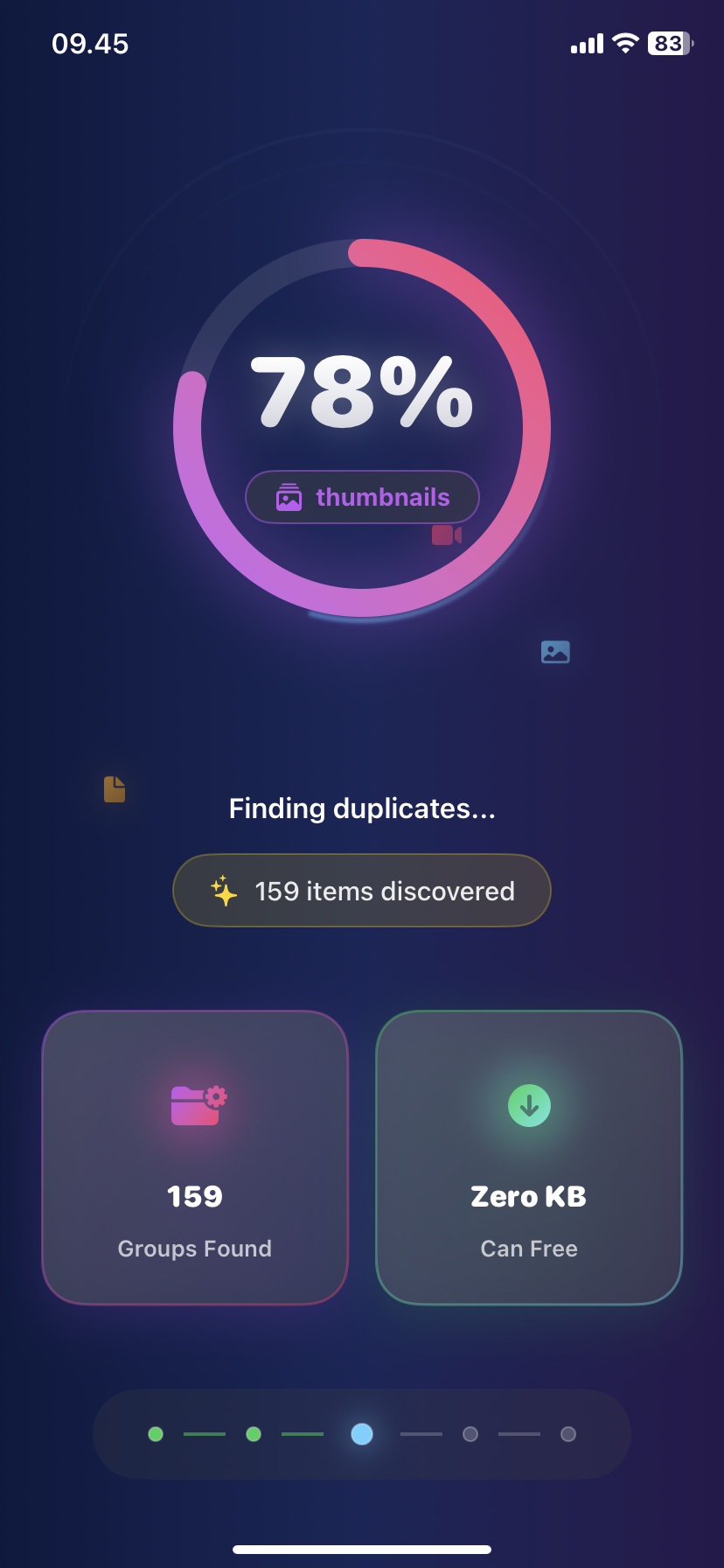
Best Way to Backup iPhone Photos Before Deleting (2025)
Cleaning 5,000 photos from your iPhone.
Accidentally delete the wrong folder.
Panic moment: Where's the backup?
Don't let this happen. Here's every way to backup iPhone photos before cleanup—free and paid options included.
Why Backup Before Deleting
Horror stories we hear:
- "Deleted my daughter's first year photos"
- "Lost entire vacation album"
- "iCloud wasn't actually syncing"
- "Thought I had backup—didn't"
The problem:
- Recently Deleted keeps photos only 30 days
- After that: permanently gone
- iCloud Photos only syncs, doesn't backup
- Deletion syncs across all devices
Solution: Multiple backups in multiple locations.
Backup Method Comparison
Quick overview:
| Method | Cost | Speed | Safety | Best For |
|---|---|---|---|---|
| -------- | ------ | ------- | -------- | ---------- |
| iCloud Photos | $0.99-9.99/mo | Auto | Medium | Most users |
| Google Photos | Free-$1.99/mo | Auto | High | Budget conscious |
| Computer Import | Free | Manual | High | Control freaks |
| External Drive | $50-100 once | Manual | Highest | Large libraries |
| Multiple Methods | Varies | Mixed | Highest | Important collections |
Recommendation: Use at least 2 methods.
Method 1: iCloud Photos (Apple's Solution)
Best for: iPhone users already in Apple ecosystem
Setup:
Step 1: Check iCloud Storage
- Settings → [Your Name] → iCloud
- View available storage
- Need space equal to Photos library size
Step 2: Enable iCloud Photos
- Settings → Photos
- Toggle "iCloud Photos" ON
- Choose "Download and Keep Originals"
Step 3: Wait for Upload
- WiFi required for large uploads
- 10,000 photos: 2-6 hours
- Check progress: Photos → bottom status
Step 4: Verify Backup
- Go to iCloud.com on computer
- Log in → Click Photos
- Confirm all photos appear
Pros:
✅ Automatic sync across all Apple devices ✅ Seamless integration ✅ Access from any device ✅ Includes metadata and editsCons:
❌ Costs $0.99-9.99/month (50GB-2TB) ❌ Deletion syncs everywhere (not true backup) ❌ Requires good internet ❌ Locked to Apple ecosystemIMPORTANT: iCloud Photos is SYNC, not backup. Deleting from iPhone deletes from iCloud.
Workaround: Before mass deletion, download copies to computer from iCloud.com.
Method 2: Google Photos (Best Free Option)
Best for: Cross-platform users, budget-conscious
Setup:
Step 1: Download Google Photos App
- Free on App Store
- Sign in with Google account
Step 2: Enable Backup
- Open app
- Tap profile icon → Photos settings
- Toggle "Backup" ON
- Choose quality:
Step 3: Complete Initial Backup
- Connect to WiFi
- Keep app open
- 10,000 photos: 3-8 hours first time
Step 4: Verify Upload
- Check backup status in app
- Look for "Backup complete" message
- Browse library to confirm
Step 5: Free Up Space
- After backup complete
- Google Photos → "Free up space" option
- Removes photos already backed up
Pros:
✅ 15GB free storage ✅ Works on iPhone and Android ✅ Excellent search features ✅ True backup (delete from iPhone, stays in Google) ✅ Unlimited storage at "Storage saver" qualityCons:
❌ "Storage saver" compresses photos slightly ❌ Requires separate app ❌ Privacy concerns (Google servers)Method 3: Import to Computer (Full Control)
Best for: Users who want local control
Mac Users:
Step 1: Connect iPhone
- Use Lightning/USB-C cable
- Unlock iPhone
- Trust computer if prompted
Step 2: Open Photos App
- Should open automatically
- Or: Applications → Photos
Step 3: Import
- Select "Import All New Photos"
- Or select specific photos
- Choose import location
- Wait for transfer
Step 4: Verify Import
- Check Photos library
- Confirm all imported
- Check file sizes match
Windows Users:
Step 1: Connect iPhone
- Use cable
- Unlock iPhone
- Trust computer
Step 2: Import Photos
- File Explorer → This PC → [iPhone Name]
- Open Internal Storage → DCIM folder
- Copy all folders to computer
- Paste to Pictures or external drive
Alternative: Download iTunes/Apple Devices app for easier import.
Pros:
✅ Completely free ✅ Full quality originals ✅ No monthly fees ✅ Complete privacy ✅ Can organize folders manuallyCons:
❌ Manual process ❌ Requires computer ❌ Must remember to do it ❌ Computer storage requiredMethod 4: External Drive Backup (Maximum Safety)
Best for: Large libraries (10,000+ photos), maximum security
Setup:
Step 1: Get External Drive
- USB SSD (faster): $60-150
- USB HDD (cheaper): $40-80
- Minimum 256GB recommended
Step 2: Import to Computer First
- Follow Method 3 above
- Import all photos to computer
Step 3: Copy to External Drive
- Connect external drive
- Copy Photos library to drive
- Keep organized folder structure
Step 4: Multiple Drive Strategy
- Consider 2 external drives
- Keep one off-site (fire/theft protection)
- Update both quarterly
Pros:
✅ No monthly fees ✅ Massive storage (1-4TB common) ✅ Offline backup (ransomware-proof) ✅ Fast access ✅ Complete privacyCons:
❌ Upfront cost ❌ Manual updates ❌ Drive can fail (have 2!) ❌ Can be lost/damagedMethod 5: Hybrid Approach (Recommended)
Maximum safety = Multiple backups
The 3-2-1 Rule:
- 3 copies of data
- On 2 different storage types
- 1 copy off-site
Example setup:
- Primary: iCloud Photos (auto-sync, access anywhere)
- Secondary: Computer import monthly
- Tertiary: External drive quarterly
Cost: $0.99/month + $60 drive one-time
Result: Nearly impossible to lose photos
Before Mass Deletion Checklist
Complete this before using photo cleaner:
□ iCloud Photos enabled and uploaded □ OR Google Photos backup complete □ OR Computer import finished within last week □ Verify backup by browsing backed-up library □ Check Recently Deleted isn't full (empty it first) □ Confirm backup includes videos (they're huge) □ Test restore process (try downloading 1 photo back)
Only then: Proceed with cleanup.
Common Backup Mistakes
Avoid these:
❌ Assuming iCloud auto-backed up - Check manually ❌ Not verifying backup completed - Browse to confirm ❌ Forgetting videos - They take longer to upload ❌ Single backup location - Drive fails, account hacked ❌ Never testing restore - Backup is useless if restore doesn't work ❌ Deleting before upload finishes - Wait for confirmation
Take Action: Backup Today
Your 10-minute backup plan:
- Enable iCloud Photos OR install Google Photos
- Connect to WiFi
- Let initial backup complete (check status)
- Verify backup online
- NOW safe to use Ezy Photo Clean
With proper backup: Clean with confidence.
Download Ezy Photo Clean - Safe Photo Cleanup
*Last updated: January 27, 2025* *Reading time: 3 minutes*
Ready to Clean Your Photo Library?
Download Ezy Photo Clean and start freeing up storage space today!
Download Free from App StoreContinue Reading
How to Delete Screenshots on iPhone (Mass Delete Guide 2025)
Delete hundreds of screenshots on iPhone in seconds. Complete guide to mass delete screenshots and reclaim storage space quickly with Ezy Photo Clean.
Find Similar Photos on iPhone: AI Detection Guide 2025
Discover how AI finds similar photos on iPhone automatically. Keep the best shot, delete the rest, and free up massive storage space instantly.