5-Minute Photo Organization: Album Organizer Tips That Work
Quick album organizer guide for iPhone users. Organize 1000s of photos in 5 minutes with these proven photo organization tips that actually work.
5-Minute Photo Organization: Album Organizer Tips That Work
Your camera roll: 5,472 unorganized photos.
Finding anything specific: Scroll for 10 minutes.
Let's fix that in 5 minutes.
The Problem With Most Album Organization Advice
Typical advice: "Create albums for every event!"
Result:
- 47 albums
- Can't remember which album has what
- Still can't find anything
- Gave up after 2 hours
Better approach: Smart albums + automation.
The 5-Minute Album Organizer Method
Step 1: Create Only These 6 Albums (2 minutes)
Don't create 50 albums. Create these 6:
1. ⭐ Best Shots (not Favorites - use differently)
- Your absolute best 50-100 photos
- The ones you'd show a stranger
- Update monthly
2. 👨👩👧👦 People
- Family and friends
- Group photos
- Portraits
3. ✈️ This Year's Travel
- All trips from current year
- Name it "Travel 2025"
- Create new one each January
4. 🎉 Events
- Birthdays, weddings, parties
- Special occasions
- Concerts, sports
5. 📱 To Share
- Photos you plan to post on social media
- Things to send to friends
- Clear out weekly
6. 🗑️ To Delete Later
- Bad shots you're not sure about
- Review monthly
- Empty after review
That's it. 6 albums. Not 60.
Step 2: Use Smart Filters (1 minute)
Your iPhone already organizes photos automatically:
Built-in smart albums:
- People & Places - Auto-grouped by face and location
- Media Types - Videos, selfies, Live Photos, screenshots
- Recently Deleted - 30-day trash
How to access: Photos app → Albums → Scroll down
Pro tip: Use these BEFORE creating manual albums.
Step 3: The 5-Second Rule (2 minutes to set up habit)
Every time you take photos:
- Review immediately (while still in Camera app)
- Delete bad shots right there
- Add keeper to relevant album (if needed)
Time: 5 seconds per photo session Result: Never have 5,000 unorganized photos again
Common Album Organizer Mistakes
Mistake #1: Too many specific albums ❌ "Dinner at Joe's - March 3" ❌ "Beach - Saturday Morning" ✅ "Meals 2025" ✅ "Beach Days"
Mistake #2: Creating albums by date ❌ "January 2025" ❌ "February 2025" ✅ Use built-in date filtering (Photos auto-sorts by date)
Mistake #3: Overthinking categories ❌ "Food - Breakfast" ❌ "Food - Lunch" ❌ "Food - Dinner" ✅ "Food" (one album)
Mistake #4: Never cleaning up albums Create → Add photos → Never look again Better: Review albums quarterly, merge duplicates
Album Organization by Photo Count
Under 1,000 photos:
- 4 albums: Best Shots, People, Travel, Events
- Use built-in filters for rest
- Time: 5 minutes total
1,000-5,000 photos:
- 6 albums (the ones above)
- Use album organizer app for duplicates first
- Time: 10 minutes
5,000+ photos:
- Same 6 albums
- Clean duplicates monthly with album organizer tool
- Use Smart Search instead of creating more albums
- Time: 15 minutes initial, 5 minutes monthly
The Smart Search Alternative
Instead of creating albums for everything, use iOS search:
Search for:
- "Beach" - All beach photos
- "Dogs" - Every dog photo
- "Christmas 2024" - Holiday photos
- "San Francisco" - Location-based
Faster than creating and maintaining albums.
Quick Win: The Screenshot Shortcut
Problem: Screenshots mixed with real photos.
Solution (30 seconds):
- Create "Screenshots" album
- Search "Screenshots"
- Select All → Add to Album
- Review and delete monthly
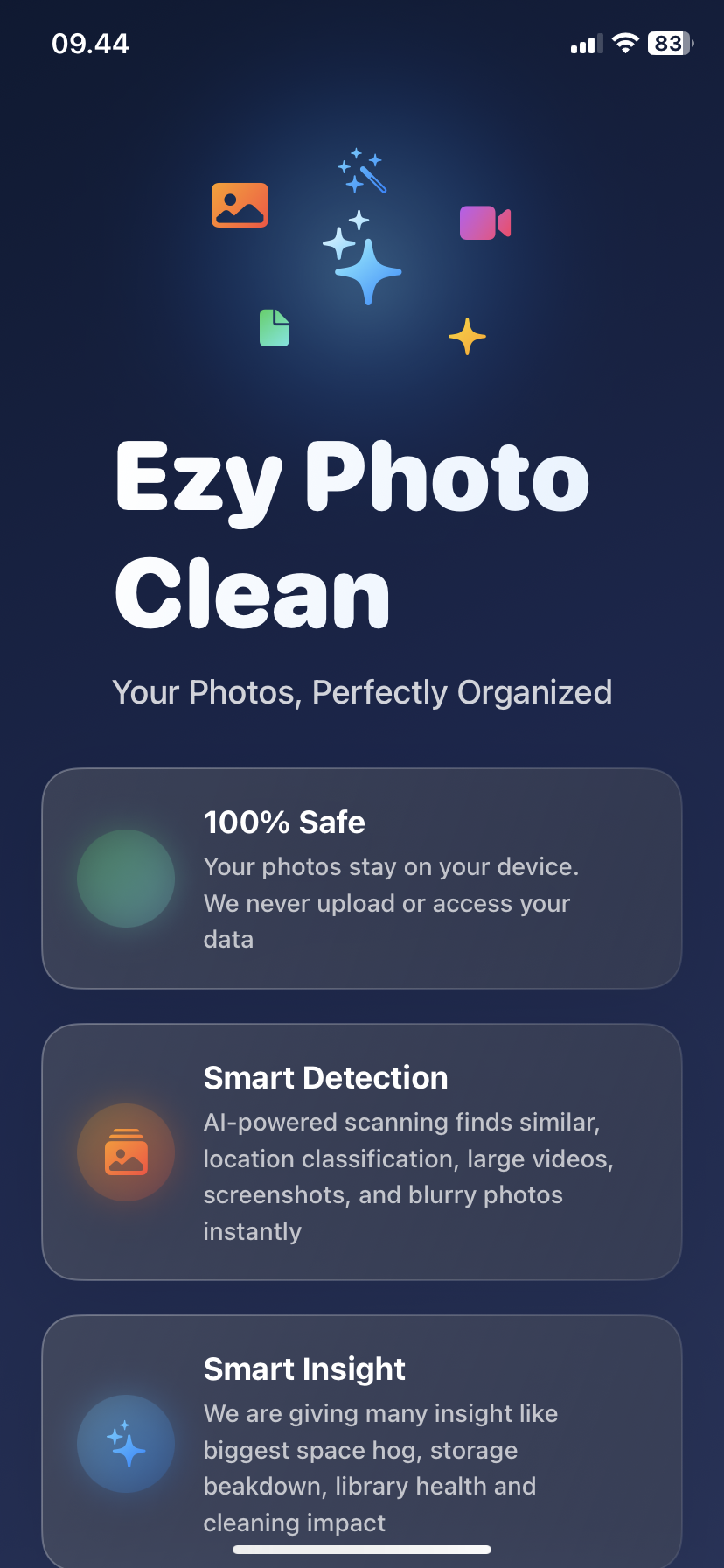
Alternative: Use Ezy Photo Clean
- Auto-groups all screenshots
- One-tap bulk delete
- Keep only important ones
The Weekly 2-Minute Maintenance
Every Sunday:
- Review new photos from the week
- Add to Best Shots (1-2 photos max)
- Delete obvious bad shots
- Empty "Recently Deleted"
Time: 2 minutes Result: Always organized
Album Organizer Tools That Help
Manual method: Sort yourself (slow) Album organizer app: Automate the boring parts
What Ezy Photo Clean does:
- Finds all duplicates (most are in multiple albums)
- Groups similar photos (pick best one for album)
- Organizes screenshots separately
- Shows large files
Time saved: 1-2 hours per cleanup
The "Too Many Photos" Problem
If you have 10,000+ photos:
Don't organize all of them. Nobody needs that.
Instead:
- Use album organizer to delete duplicates first (-2,000 photos)
- Delete blurry/bad photos (-1,000 photos)
- Delete old screenshots (-500 photos)
- Now down to ~6,500 photos
- Only organize the keepers
Time: 20 minutes with album organizer tool vs 10 hours manually
One-Time Setup, Forever Organized
This weekend (5 minutes):
- Create 6 albums
- Move 20-30 photos to each
- Set weekly 2-minute reminder
Every week after (2 minutes):
- Add new photos to albums
- Delete bad shots
Every month (5 minutes):
- Run album organizer to find duplicates
- Review albums, remove duplicates
- Update "Best Shots"
Result: Never spend hours organizing photos again.
The Bottom Line
Photo organization isn't about creating 100 albums.
It's about: ✅ Creating 6 strategic albums ✅ Using Smart Search for everything else ✅ Using an album organizer tool monthly ✅ Following the 5-second rule
Start now:
- Create 6 albums (2 min)
- Add 10 photos to each (3 min)
- Done
Download Ezy Photo Clean - Free Album Organizer
*Last updated: January 12, 2025* *Reading time: 3 minutes*
Ready to Clean Your Photo Library?
Download Ezy Photo Clean and start freeing up storage space today!
Download Free from App StoreContinue Reading
How to Delete Screenshots on iPhone (Mass Delete Guide 2025)
Delete hundreds of screenshots on iPhone in seconds. Complete guide to mass delete screenshots and reclaim storage space quickly with Ezy Photo Clean.
Find Similar Photos on iPhone: AI Detection Guide 2025
Discover how AI finds similar photos on iPhone automatically. Keep the best shot, delete the rest, and free up massive storage space instantly.